- التسوق ، اصبح سهلا.
- /
- احصل على التطبيق!
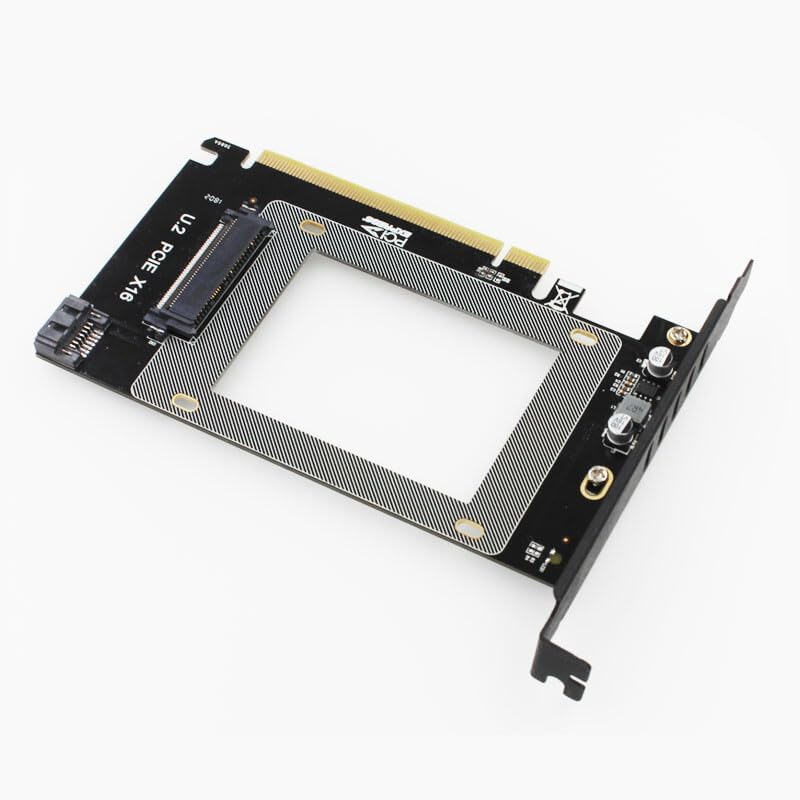
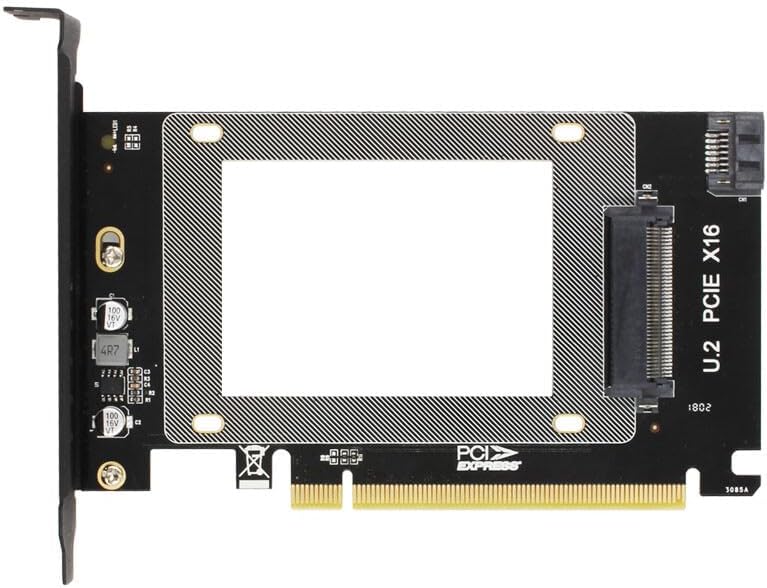
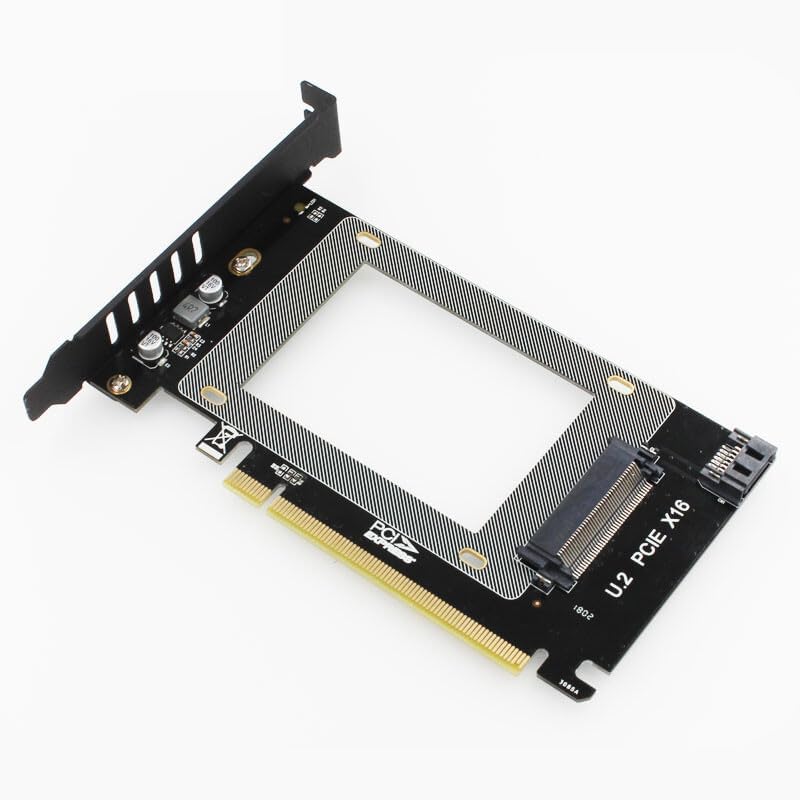
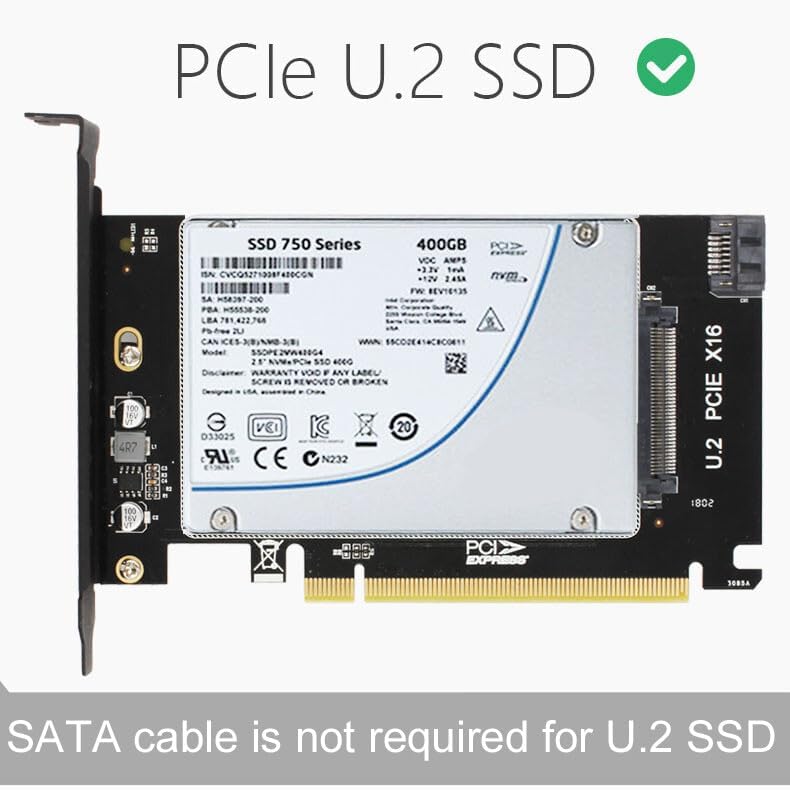
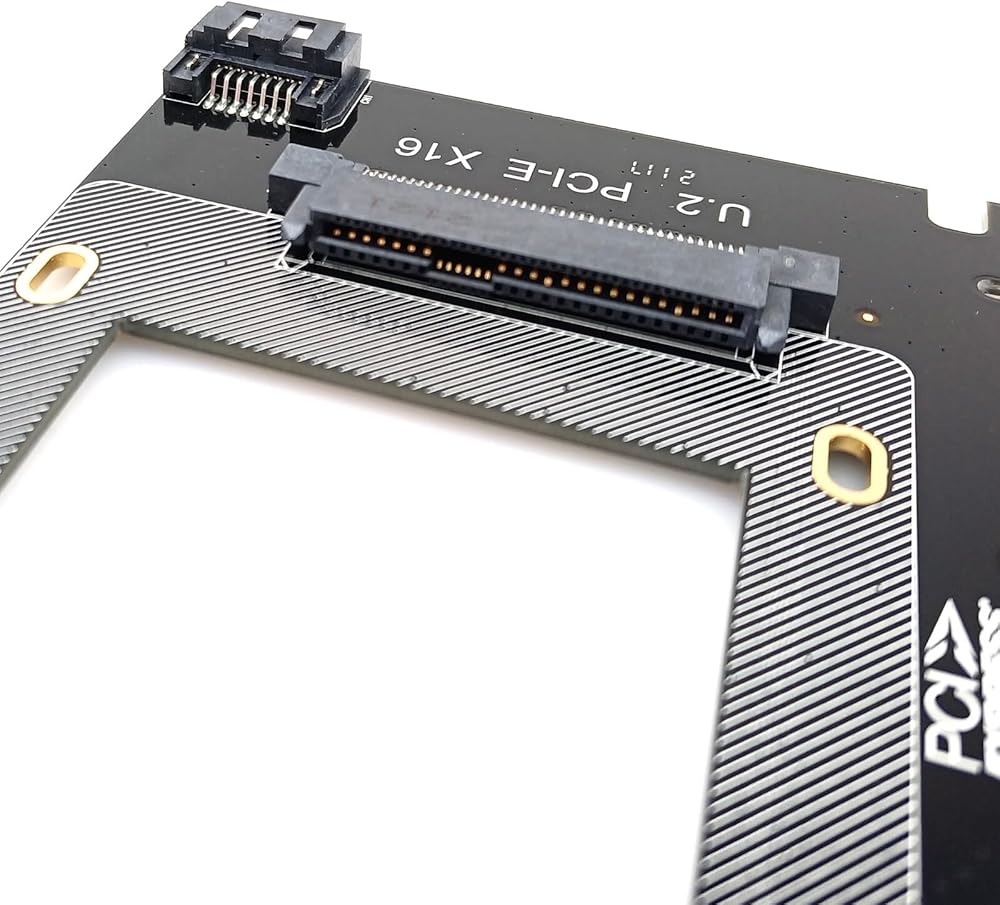
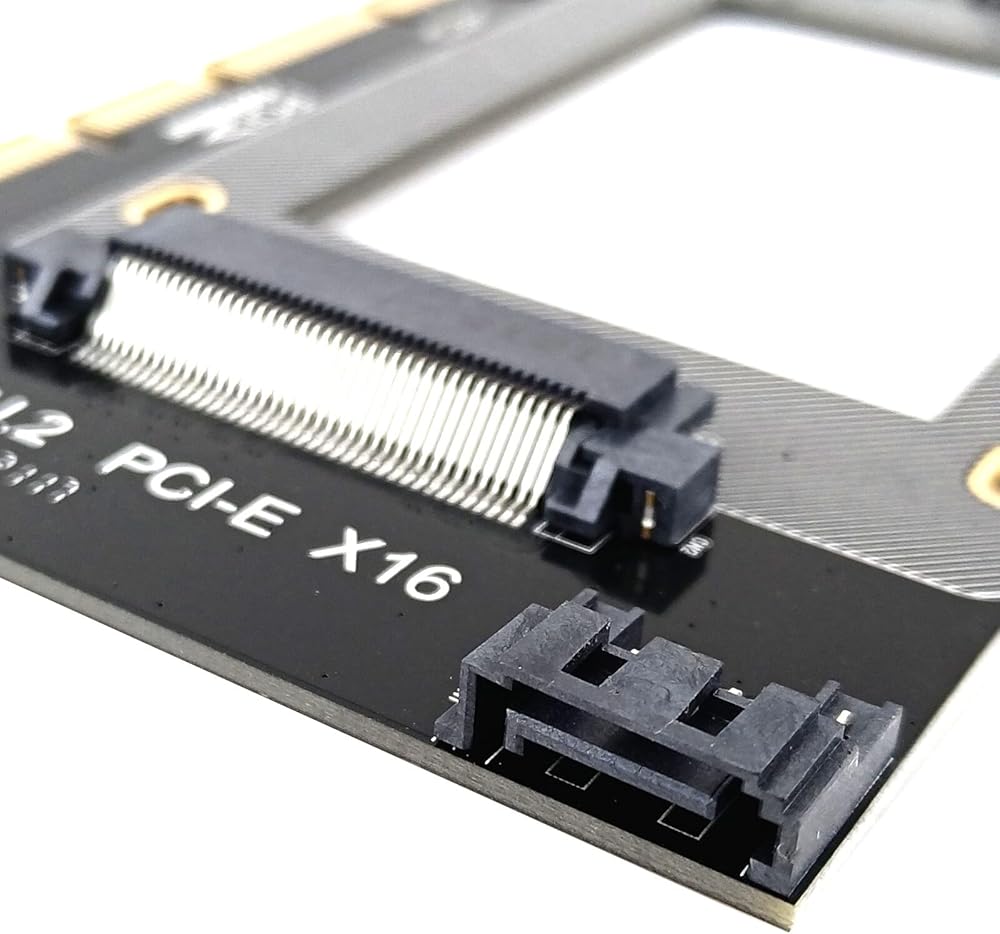
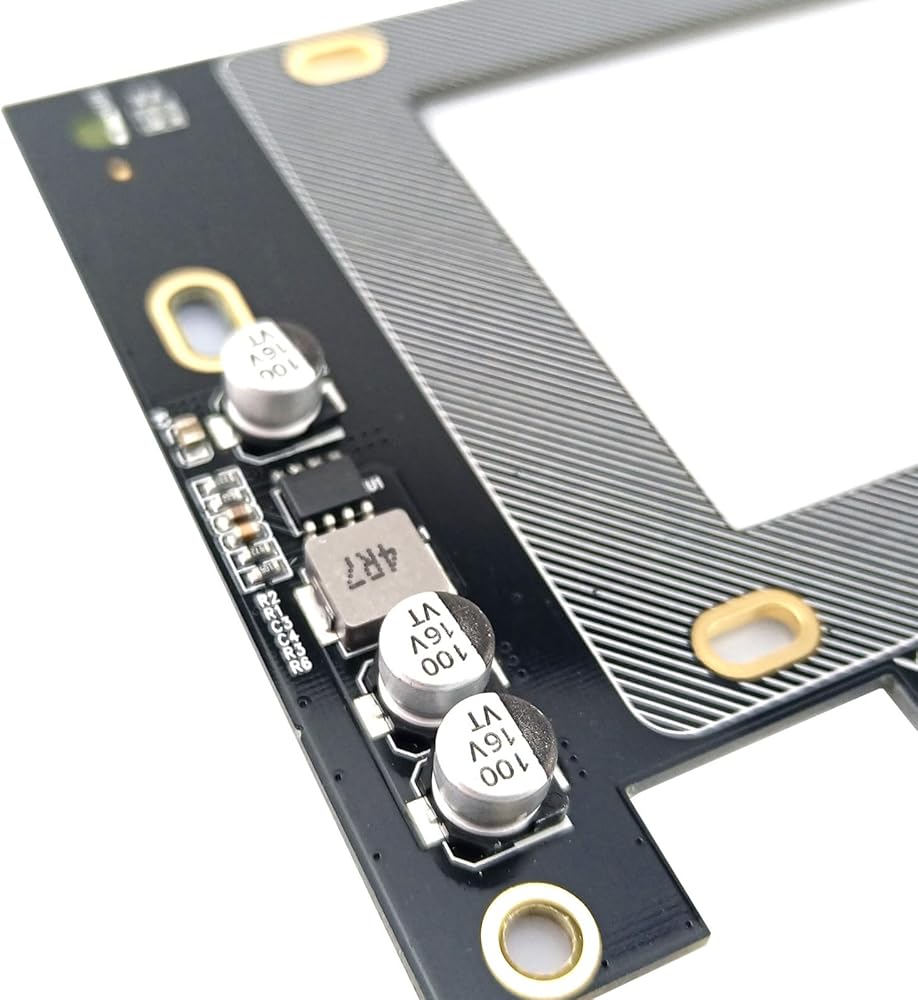
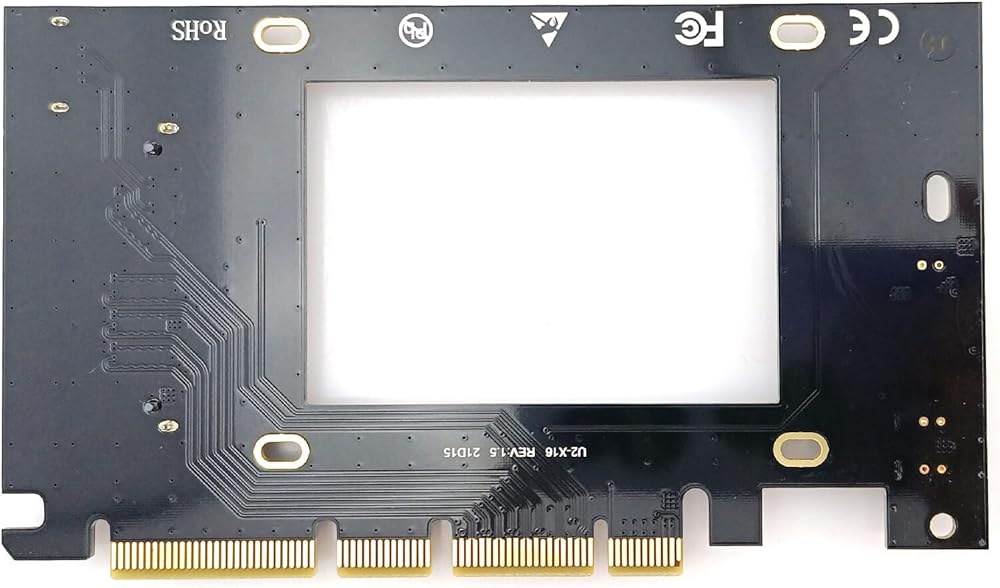
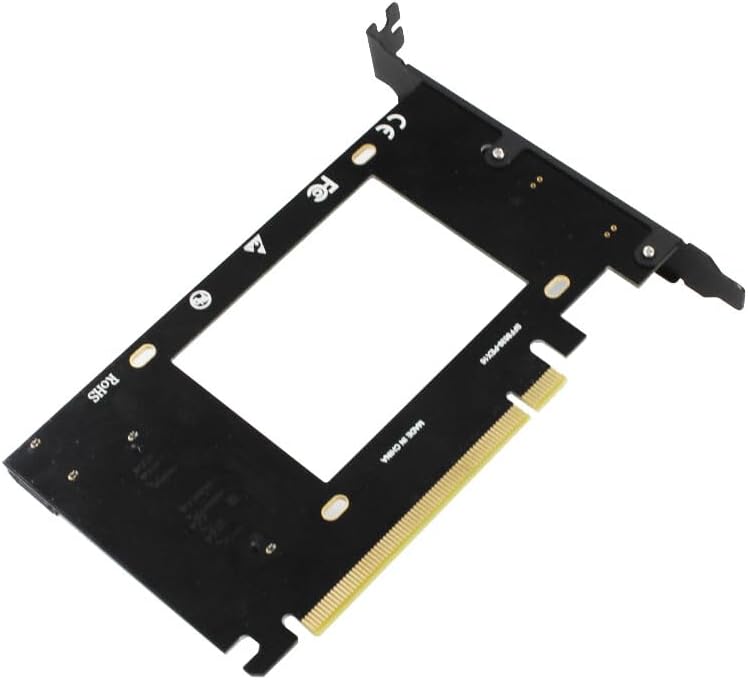
Description: This adapter card is for U.2 SSD or SATA SSD and converts it to PCI-e adapter in order to expand the drives. It directly plugs to motherboard PCI-e X16 slot without speed lost. Feature: Integrated high-speed signal enhancement technique, full speed transmission Accurate solid structure design Support U.2 SSD or SATA SSD 5A high power DC TO DC power supply module Long running stability and can work under wide temperature PCI-e 3.0 X16 GEN3 design, from the underlying technology to ensure full speed No driver required, plug and play Adapter Size: 145 x 85 x 2mm (5.71 x 3.35 x 0.08 inch) Packing List (bulk pack): 1 x PCI-e adapter card 1 x Full height bracket 1 x Set of screws Note: SSD is not included SATA SSD requires SATA cable which is not included Please check if the indicator light is on, and enter Disk Management after booting up to see if the device is recognized. If the device cannot be recognized, please first check the model of the machine and troubleshoot compatibility issues. (A new hard drive needs to be partitioned in Disk Management.) Please allow 0.5–1cm differences due to manual measurement. Due to the light and screen difference, the item's color may be slightly different from the pictures. Notes for Use of U.2 SSD Adapter (PCIe 16x Interface) To avoid the issue of the adapter and hard drive not being recognized in the Windows 11 system and ensure the device functions as advertised, please pay attention to the following points before use or when encountering recognition failures: 1. Ensure Secure Hardware Connection: Be sure to fully insert the adapter into the PCIe 16x slot and press it until the fixing buckle locks in place; the connection between the U.2 SSD and the adapter must be plugged in tightly, and the external power cable (if applicable) should be connected firmly without loosening. Regularly check the gold fingers of the adapter and SSD. If there is oxidation or dust accumulation, wipe them gently with an eraser before installation to prevent signal transmission obstruction. 2. Configure BIOS Settings Appropriately: Enter the motherboard BIOS and confirm that the used PCIe 16x slot is enabled, and at the same time, turn on the relevant support options for NVMe/U.2 storage. Set the BIOS boot mode to UEFI and disable the CSM compatibility mode (this mode may interfere with Windows 11's recognition of the device), and ensure that the working mode of the PCIe slot is compatible with the adapter. 3. Troubleshoot Compatibility and Quality Issues: If the device is still not recognized after the above operations, troubleshoot hardware faults through cross-testing (connect the SSD to another adapter/computer, or connect the adapter to another computer).
 أنماط مختلفة من الألومنيوم سبيكة Scope Scope Base Bracket لتلسكوب الفلكي (B#-RED)
KWD 5
أنماط مختلفة من الألومنيوم سبيكة Scope Scope Base Bracket لتلسكوب الفلكي (B#-RED)
KWD 5
 5 حزمة صيد قضيب مقبض مركب Cork Grip DIY Rod Building Repair
KWD 11
5 حزمة صيد قضيب مقبض مركب Cork Grip DIY Rod Building Repair
KWD 11
 5pcs غزل بكرة المقعد 28#، 28.2 مم بناء قضيب مقعد طويل القضيب لصيد القضيب مقبض قضيب بناء بكرة الصيد
KWD 10
5pcs غزل بكرة المقعد 28#، 28.2 مم بناء قضيب مقعد طويل القضيب لصيد القضيب مقبض قضيب بناء بكرة الصيد
KWD 10
 مقبض بكرة مقبض متوافق مع أبو شيمانو دايوا ناعمة من خشب الفلين الغزل الغزل - أسود ، أزرق ، رمادي ، أخضر ، أرجواني ، أحمر ، فضية
KWD 6
مقبض بكرة مقبض متوافق مع أبو شيمانو دايوا ناعمة من خشب الفلين الغزل الغزل - أسود ، أزرق ، رمادي ، أخضر ، أرجواني ، أحمر ، فضية
KWD 6