- التسوق ، اصبح سهلا.
- /
- احصل على التطبيق!
Wide Compatibility
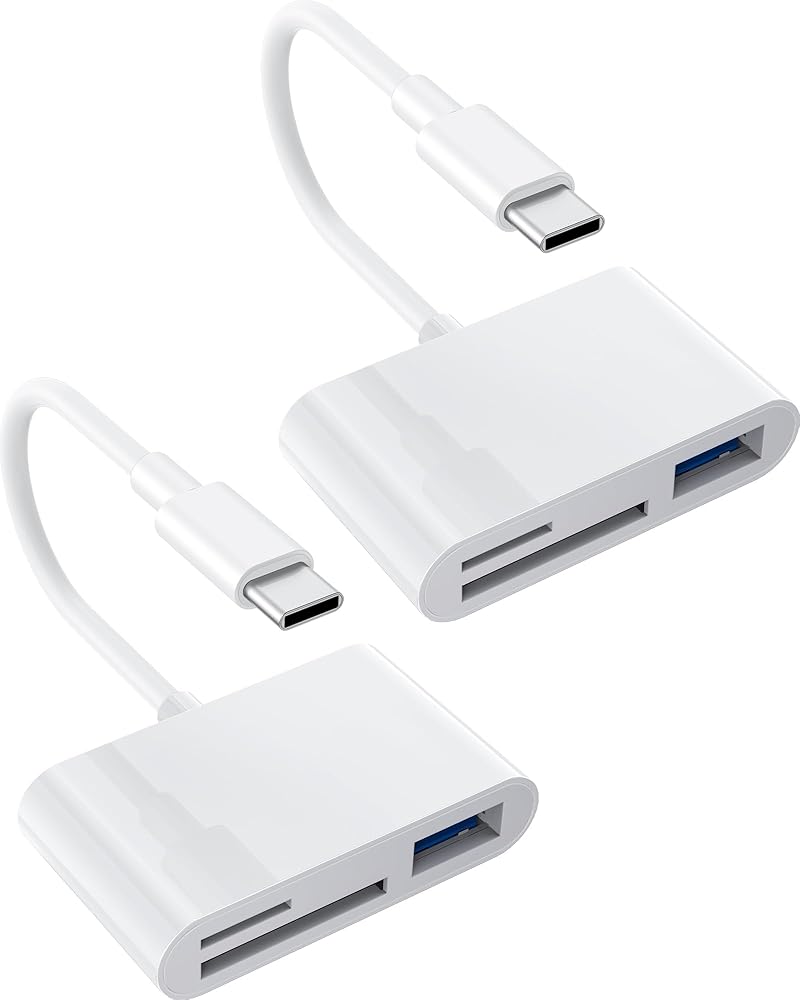
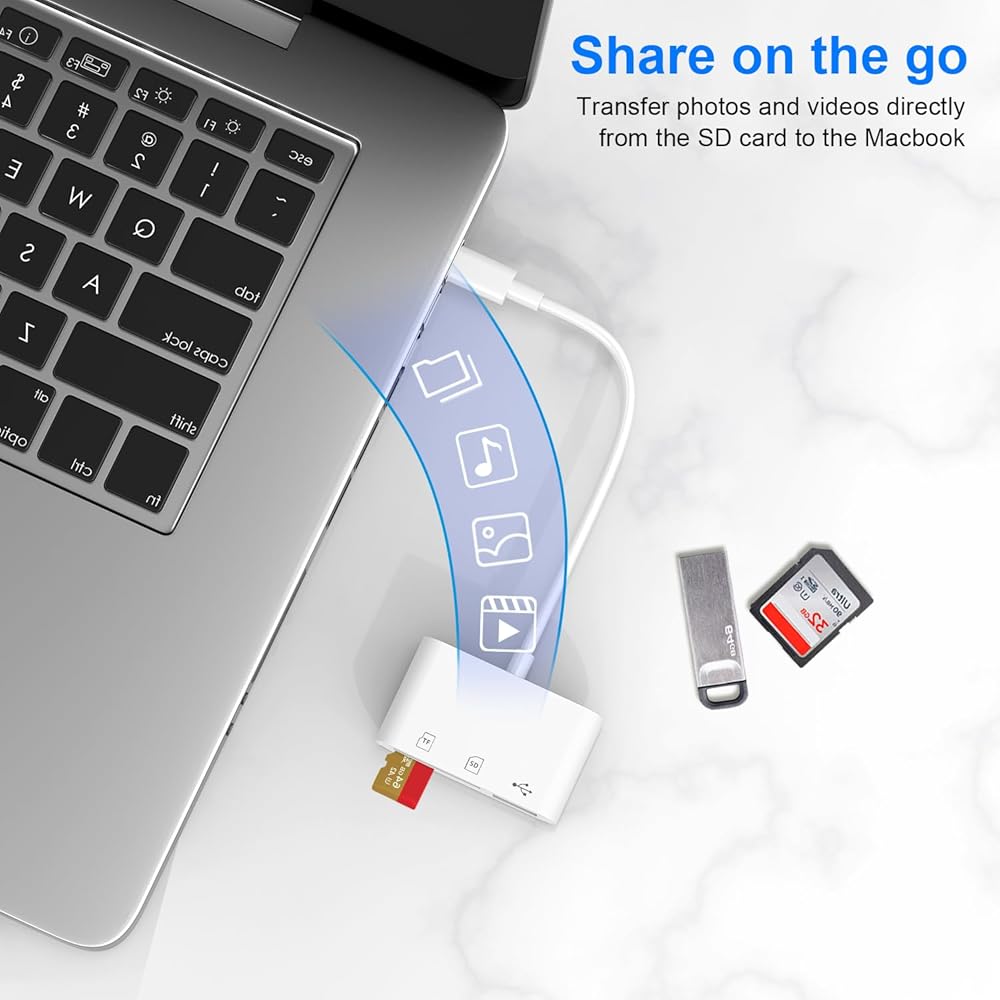
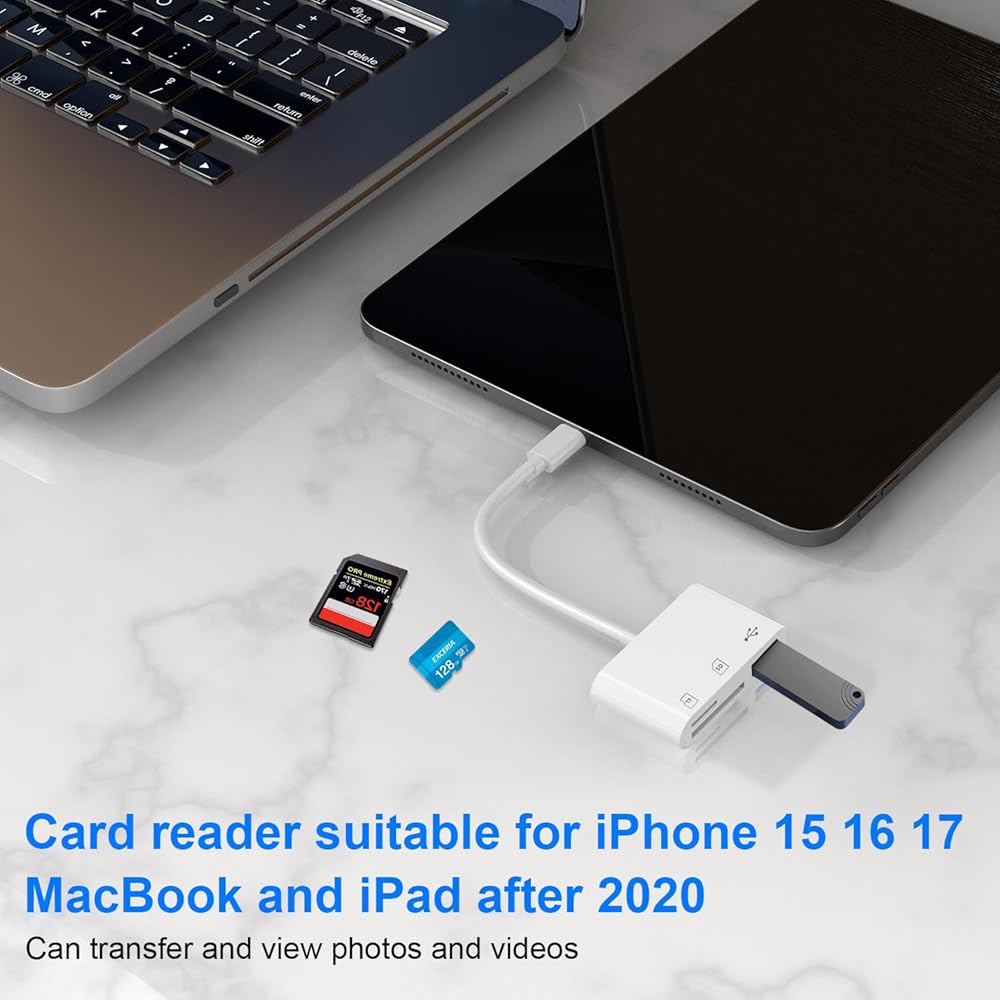
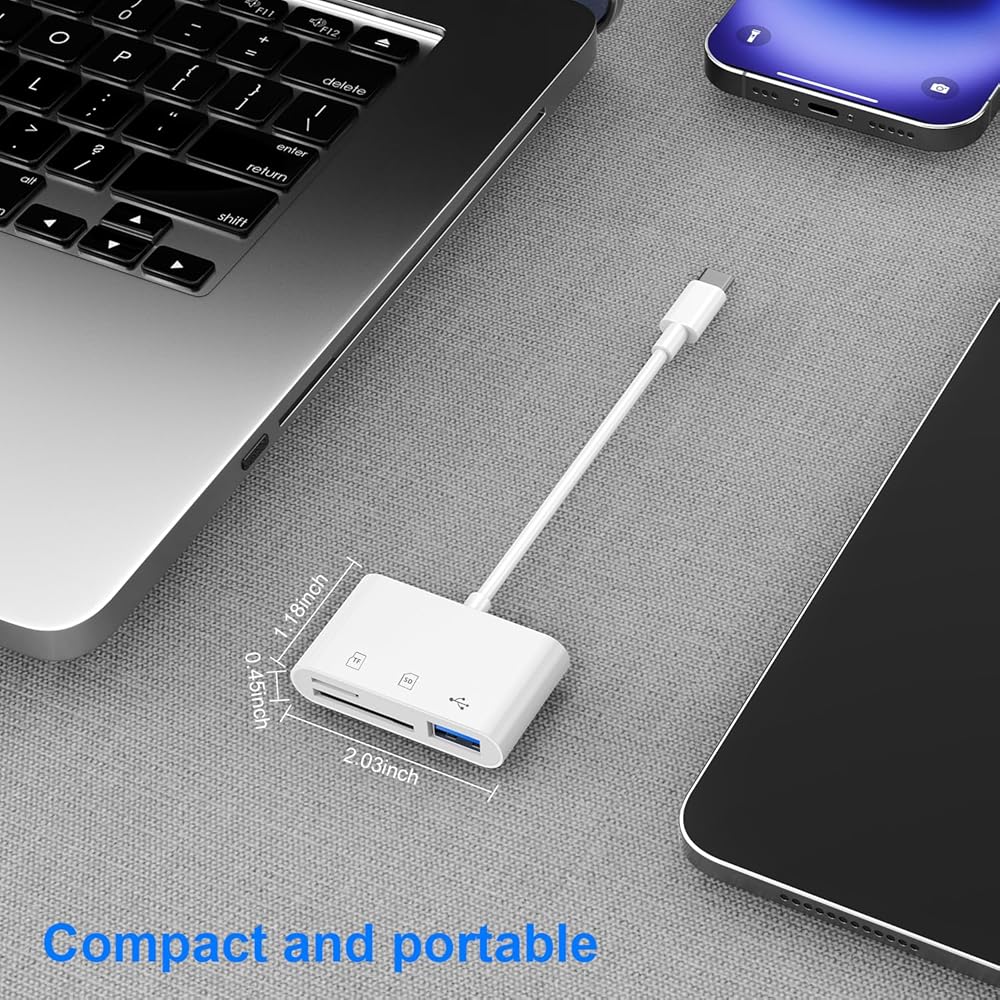
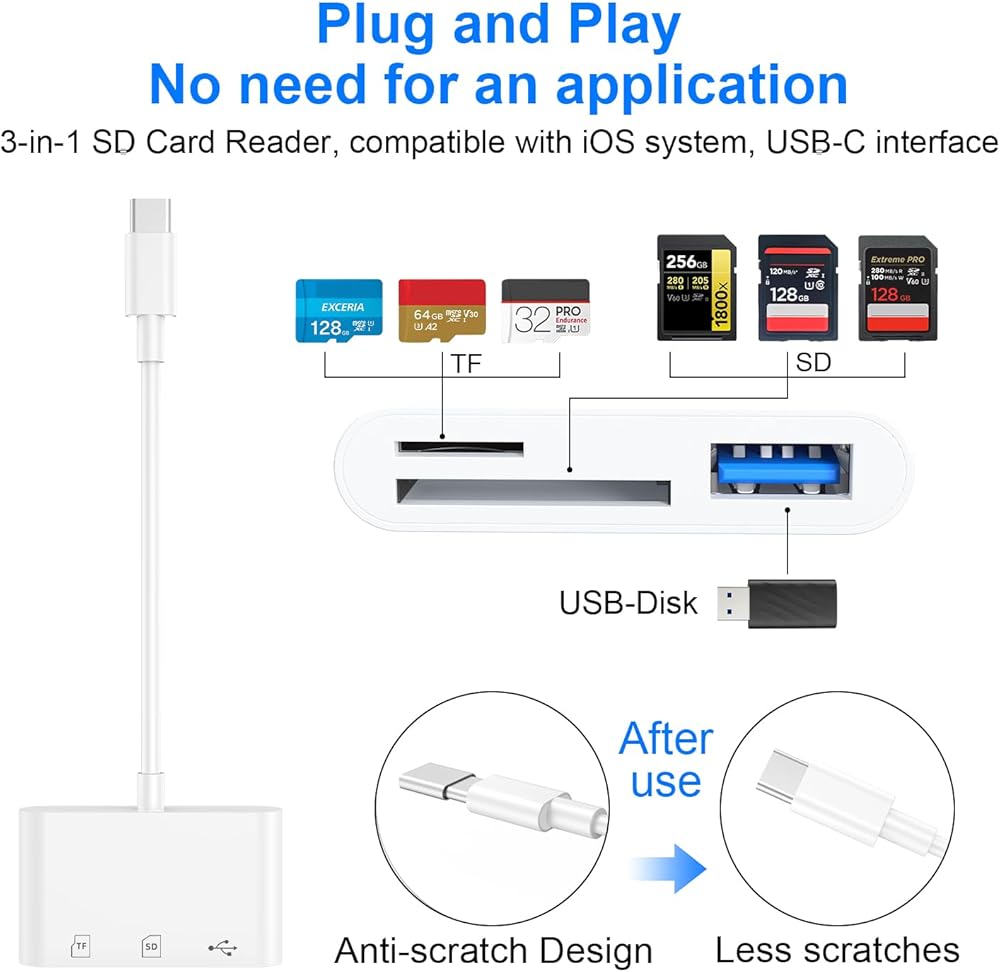
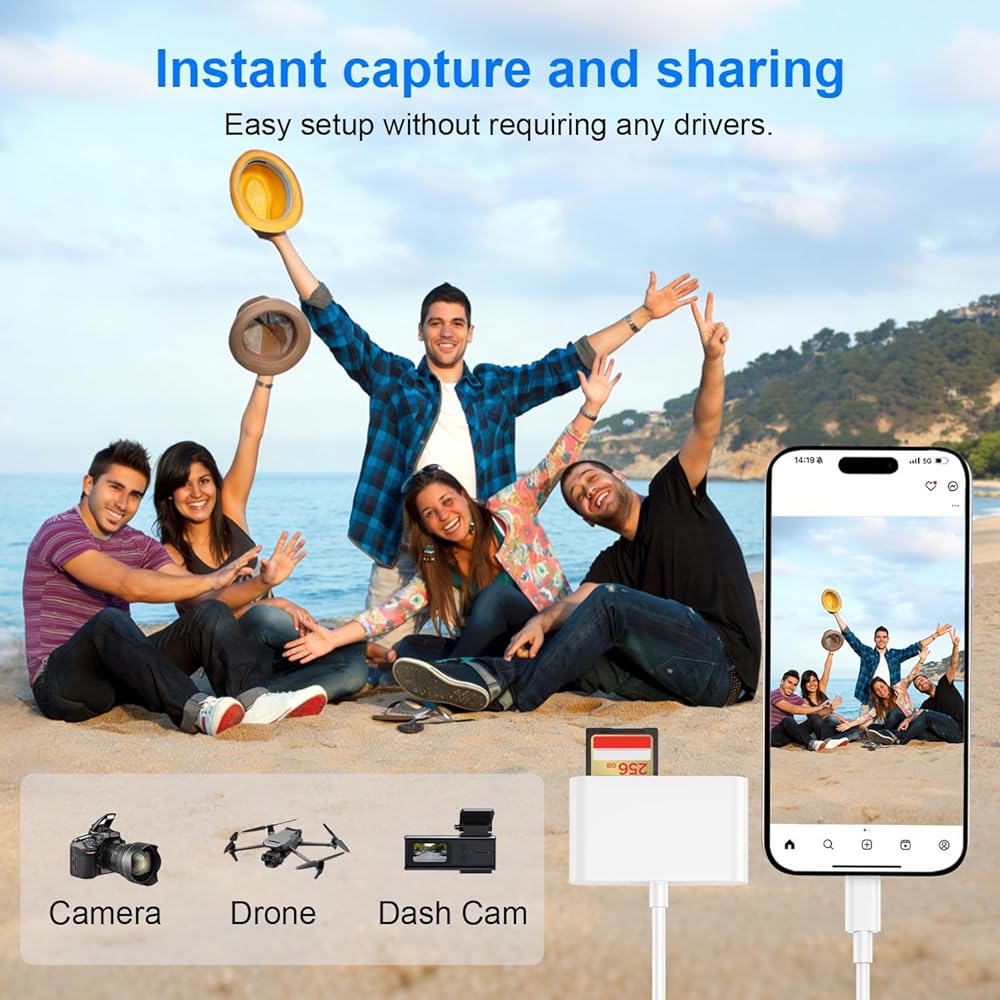
The USB-C SD card reader is compatible with Type C iPhone 15, 16, 17 series, iPad (with USB-C port), MacBook Pro/Air, iMac, Mac. (Note: It only reads and transfers data from SD and TF cards. It does not directly connect to cameras and is not compatible with "Lightning" port devices.)
Incompatible devices
1. Does not support USB-C ports that only charge
2. Does not support devices with "Lightning" and "USB-A" interfaces
3. Does not support some SD/TF cards with encryption or special formats (such as camera-specific formats)
4. Does not support OTG function for Android phones and tablets (OTG support can be found in settings or official specifications)
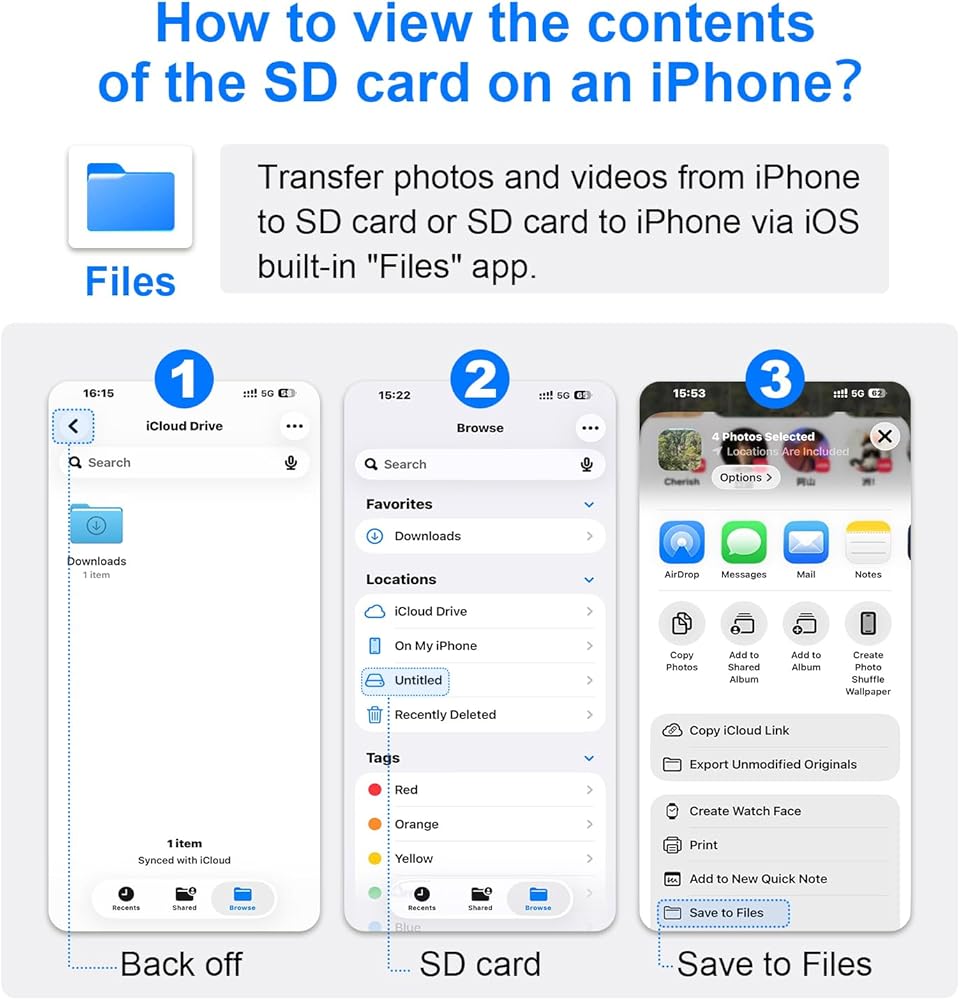
How to find files on an SD card on an iPhone?
1. Insert the SD card into a card reader.
2. Plug the card reader into your iPhone (Type-C).
3. Tap the "Files" app.
4. Tap "Browse" under iCloud Drive.
5. Tap the name of the SD card you want to browse.
6. Now you can view the files on your SD card under "Your SD card name".
Note: When inserting some devices into the card reader for reading, a USB drive will pop out. Before disconnecting the SD card, you need to find the USB drive in the notification center at the bottom. Long press to eject, then click Eject, so as to disconnect the SD card connection. (If you don't click Eject, the transferred photos will be damaged.)
 -11%
4 قطع من محول مقبس سماعة الرأس أنثى USB C إلى 3.5 مم، سلك كابل USB C إلى Aux Audio Dongle، متوافق مع Samsung S20/S20+/S20 Ultra وPixel 4/+ 4XL والمزيد من أجهزة USB C
KWD 4
-11%
4 قطع من محول مقبس سماعة الرأس أنثى USB C إلى 3.5 مم، سلك كابل USB C إلى Aux Audio Dongle، متوافق مع Samsung S20/S20+/S20 Ultra وPixel 4/+ 4XL والمزيد من أجهزة USB C
KWD 4
 -14%
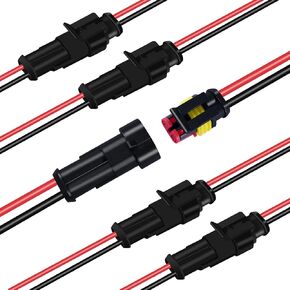
موصلات كهربائية مقاومة للماء ذات دبوسين، موصلات أسلاك ذكر وأنثى 18 AWG، موصل قابس 12 فولت، مناسب لتوصيل الخطوط الحالية الضعيفة مثل السيارات والدراجات النارية والسفن (5 عبوات)
KWD 3
-14%
موصلات كهربائية مقاومة للماء ذات دبوسين، موصلات أسلاك ذكر وأنثى 18 AWG، موصل قابس 12 فولت، مناسب لتوصيل الخطوط الحالية الضعيفة مثل السيارات والدراجات النارية والسفن (5 عبوات)
KWD 3
 -10%
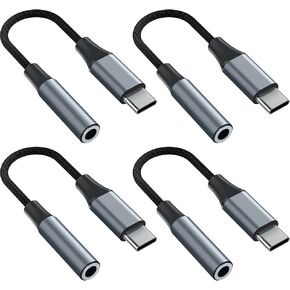
4pcs USB C إلى 3.5 ملم محول مقبس سماعة الرأس ، حالة ترقية المعادن ، متوافقة مع Samsung S20+/S21 Ultra و iPhone15 16 والمزيد من أجهزة الصوت USB C
KWD 4.500
-10%
4pcs USB C إلى 3.5 ملم محول مقبس سماعة الرأس ، حالة ترقية المعادن ، متوافقة مع Samsung S20+/S21 Ultra و iPhone15 16 والمزيد من أجهزة الصوت USB C
KWD 4.500
 4 قطع خيط قابل للتمدد لصنع الأساور، سلك خرز 1 مم، 656 قدم، مناسب لصنع الأساور والقلائد والمواد المطرزة والحرف اليدوية (قطعتان باللون الأسود، قطعتان باللون الأبيض)
KWD 3.500
4 قطع خيط قابل للتمدد لصنع الأساور، سلك خرز 1 مم، 656 قدم، مناسب لصنع الأساور والقلائد والمواد المطرزة والحرف اليدوية (قطعتان باللون الأسود، قطعتان باللون الأبيض)
KWD 3.500