- Shopping, made easy.
- /
- Get the app!
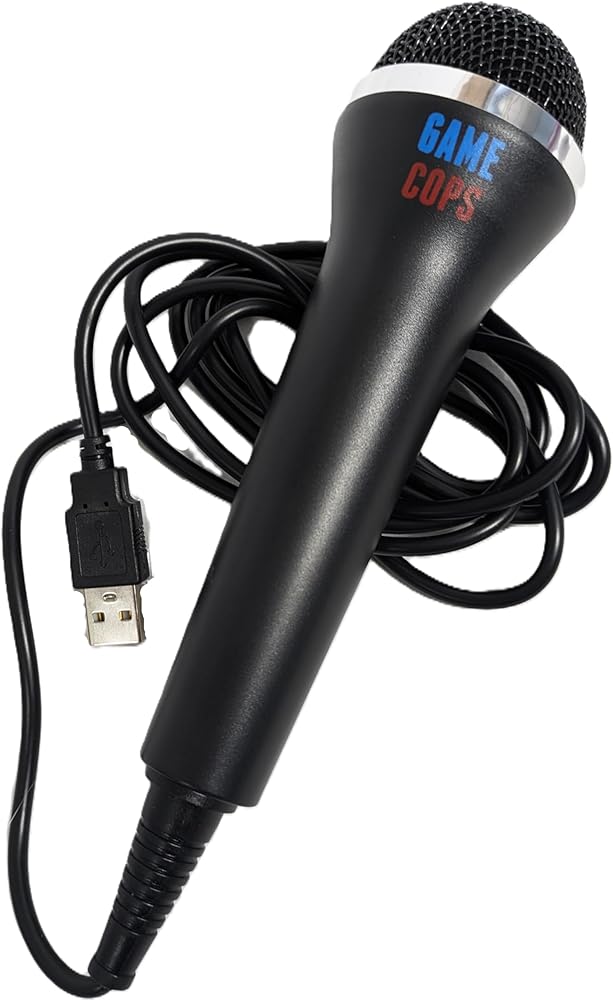
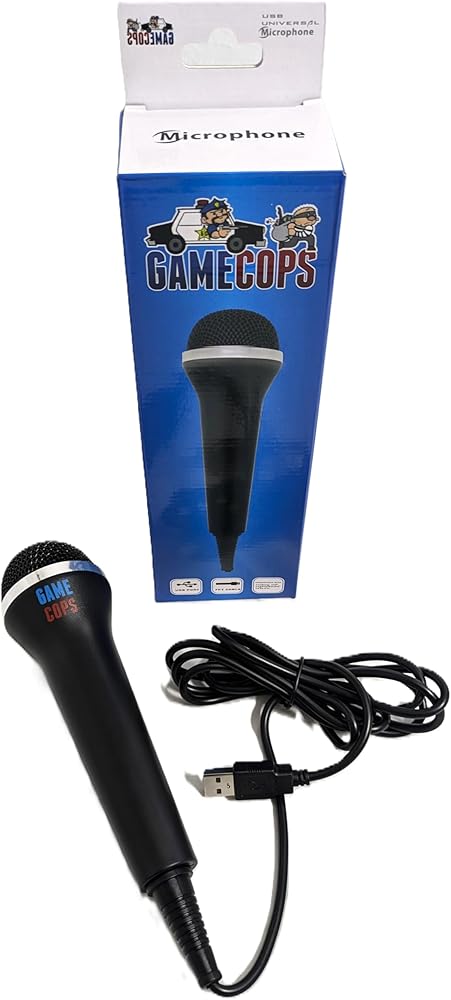
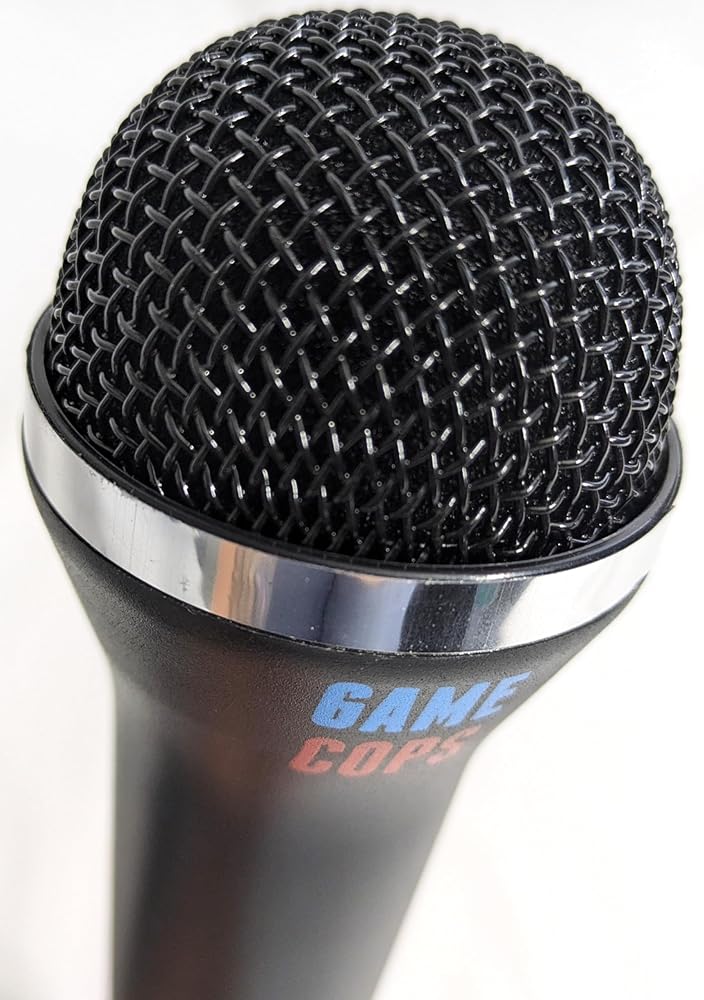
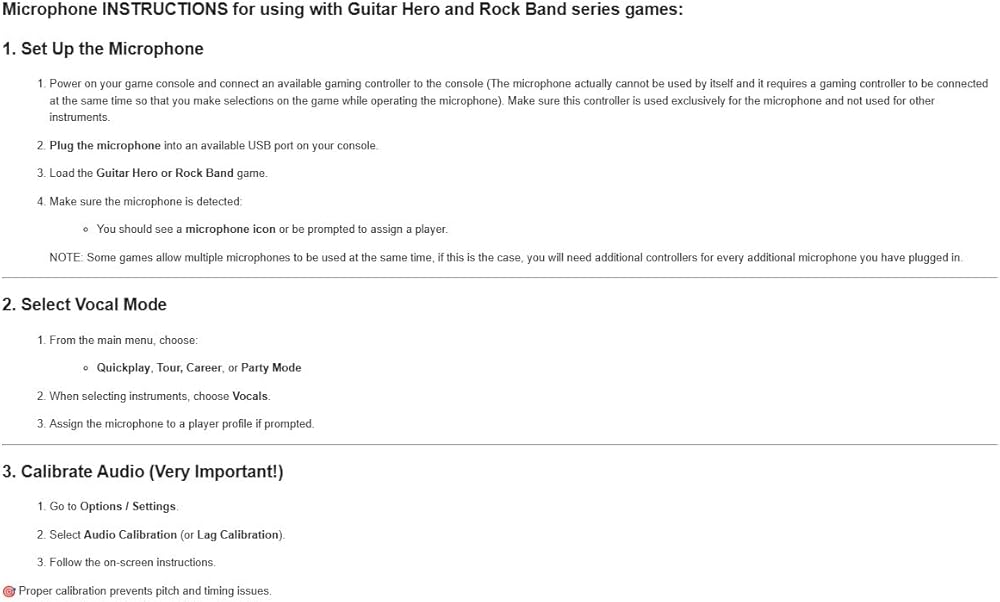
Bring the party to life or rock out solo with the Game Cops Universal USB Microphone, built for all your favorite music rhythm games and more. Whether you're singing in Rock Band, shouting callouts in Guitar Hero, or belting out karaoke classics, this mic has you covered. This plug-and-play USB microphone works seamlessly with PlayStation 4, PlayStation 3, Xbox One, Xbox 360, Wii, PC, Mac, and most consoles or systems with a standard USB port. It's compatible with all major singing and rhythm games, including Guitar Hero, Rock Band, Let's Sing, and Karaoke Revolution. With a generous 7-foot cable, you'll have plenty of room to move, dance, or share the mic during group sessions. Its lightweight design makes it comfortable for long play sessions for kids and adults alike. This microphone also functions as a general-purpose USB mic for PC and Mac - ideal for Zoom calls, streaming, YouTube videos, podcasts, or voice chat. Microphone INSTRUCTIONS for using with Guitar Hero and Rock Band series games: 1. Set Up the Microphone Power on your game console and connect an available gaming controller to the console (The microphone actually cannot be used by itself and it requires a gaming controller to be connected at the same time so that you make selections on the game while operating the microphone). Make sure this controller is used exclusively for the microphone and not used for other instruments. Plug the microphone into an available USB port on your console. Load the Guitar Hero or Rock Band game. Make sure the microphone is detected: You should see a microphone icon or be prompted to assign a player. NOTE: Some games allow multiple microphones to be used at the same time, if this is the case, you will need additional controllers for every additional microphone you have plugged in. 2. Select Vocal Mode From the main menu, choose: Quickplay, Tour, Career, or Party Mode When selecting instruments, choose Vocals. Assign the microphone to a player profile if prompted. 3. Calibrate Audio (Very Important!) Go to Options / Settings. Select Audio Calibration (or Lag Calibration). Follow the on-screen instructions. Proper calibration prevents pitch and timing issues.
 Audio-Technica ATR4697-USB Omnidirectional Condenser Boundary Microphone
KWD 16
Audio-Technica ATR4697-USB Omnidirectional Condenser Boundary Microphone
KWD 16
 Nuance Communications 0POWM3N9-E01 Nuance PowerMic III Microphone; Mono; 20 Hz to 16 kHz; Wired; 9 ft Cord;
KWD 190
Nuance Communications 0POWM3N9-E01 Nuance PowerMic III Microphone; Mono; 20 Hz to 16 kHz; Wired; 9 ft Cord;
KWD 190
 USB Microphone Lavalier Lapel Clip on Mic with 6.56ft Cable for Laptop, Computer, PC, Streaming Conferencing,Interviews, Online Singing, Skype, MSN, Audio Video Recording
KWD 7
USB Microphone Lavalier Lapel Clip on Mic with 6.56ft Cable for Laptop, Computer, PC, Streaming Conferencing,Interviews, Online Singing, Skype, MSN, Audio Video Recording
KWD 7
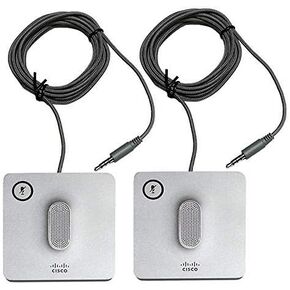 Cisco Wired Microphone Kit - microphone (CP-8832-MIC-WIRED=) (Renewed)
KWD 31
Cisco Wired Microphone Kit - microphone (CP-8832-MIC-WIRED=) (Renewed)
KWD 31