- Shopping, made easy.
- /
- Get the app!
Specification:
Item Type: USB Cordless Print Server
Material: ABS
Color: White
Output Interface: Bridge (10/100Mbps)
Input Interface: LAN (10/100Mbps)
Power Port: Micro USB
USB Port: USB 2.0
Preparation:
1. Make sure that the printer driver is installed on your computer and that it can print properly. (The simplest way to verify the installation of the driver is to directly connect the computer to the printer and check if it can print correctly, which is the prerequisite for the printer server to work properly).
2. Connect the power of the print server, connect the USB print cable of the printer, and connect the network cable of the local area network to the print server. (Connection diagram is on the packaging box).
3. After the print server is powered on for 3 minutes, use your mobile phone to search for a Cordless signal with @MG_XXXX. The Cordless password is: 77777777 (8 sevens). A webpage window will automatically up on your phone, or you can access webpage with a mobile phone.
Setting up on the computer:
After completing the above steps, go to the Control Panel on your computer, Devices, Printers and Scanners, select the printer you want to set up, and click on Manage. (To ensure smoothing setup, make sure that the current computer can print properly by connecting it to the printer via a USB print cable, which confirms that the driver is correct).
1. Select Printer Properties.
2. Click on Port, Add Port, Select Standard TCP/IP Prot, Click on New Port.
3. Enter the IP address of the printer server (in the previous teaching how to view the IP address of the printer server through the mobile phone), click following, and wait for 1 minute.
4. Be sure to select Custom
5. Finished and use
packing list:
1 x USB Print Server
1 x Power Cord
 Portable Hard Shell Carry Case for New 3DS XL, Protective Travel Storage Bag with 8 Game Slots, Compatible with Super Edition, New 2DS XL, GPD 5.5in Gamepad Tablet (Red)
KWD 6.500
Portable Hard Shell Carry Case for New 3DS XL, Protective Travel Storage Bag with 8 Game Slots, Compatible with Super Edition, New 2DS XL, GPD 5.5in Gamepad Tablet (Red)
KWD 6.500
 Cordless Numeric Keypad, 22 Keys BT Number Pad with Touchpad, USB C Rechargeable Numeric Keypad, Support for Win, for Android, for OS X (Black)
KWD 8.500
Cordless Numeric Keypad, 22 Keys BT Number Pad with Touchpad, USB C Rechargeable Numeric Keypad, Support for Win, for Android, for OS X (Black)
KWD 8.500
 Copy and Paste 2-Key Keyboard, 2 Keys Programmable Keyboard with Mini USB Mechanical Keypad for Rhythm Games or macros (Black)
KWD 6
Copy and Paste 2-Key Keyboard, 2 Keys Programmable Keyboard with Mini USB Mechanical Keypad for Rhythm Games or macros (Black)
KWD 6
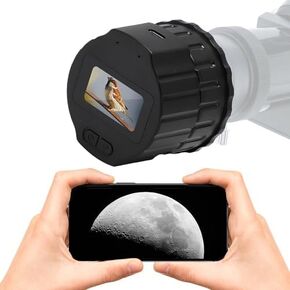 16MP Electronic Eyepiece Camera for 28mm to 50mm Telescopes, 1.5 inch Screen, Video Resolution, Link to with Viidure App
KWD 19
16MP Electronic Eyepiece Camera for 28mm to 50mm Telescopes, 1.5 inch Screen, Video Resolution, Link to with Viidure App
KWD 19