- التسوق ، اصبح سهلا.
- /
- احصل على التطبيق!
Notes, Setup Steps, and Reset Operations:
*Notes:
1. Before configuring the camera's network, your phone must have Bluetooth enabled, positioning enabled, and connected to a Wi-Fi network. The camera must be properly connected to a Wi-Fi network before use. The camera supports 2.4G/5G/4G networks and mobile data networks.
2. When installing Tuya Smart, you must allow app permissions. If you registered the camera account using an email address, the verification code sent by the camera app may be blocked by that email address. Therefore, please check your spam folder for the verification code. To ensure successful camera account registration, you can also register the camera account using a different account.
3. Before setting up the camera, please check the current Wi-Fi password on your phone and back it up. During the pairing process, be sure to enter the correct Wi-Fi password to ensure the setup is correct; otherwise, the camera will not be able to connect. If the setup fails, you must first restore the camera to factory settings before resetting the network.
4. During setup: Keep your phone, camera, and Wi-Fi device within 3 meters of each other. To ensure correct setup, please enter the correct Wi-Fi password. Once setup is complete, you can remotely control your phone regardless of distance. When outdoors, please enable data transmission on your phone.
5. Note: Videos on the TF card are encrypted and cannot be read by a computer. You can view videos in the camera app on your phone; you can also save them by tapping the "Record" icon in the app. 6. It is normal for the camera to heat up. We have conducted safety checks. Do not place the camera in a metal enclosure to prevent signal obstruction.
**When should I reset the camera?
If setup fails. If the Wi-Fi environment changes. If the camera loses connection for unknown reasons. In these cases, you will need to reset the camera. Please also check that the password and steps you entered are correct.
How do I restore the camera to factory settings? 1. After connecting the camera to a power source, wait one minute. Using the included stylus, press and hold the reset button or "R" button on the camera for about 10 seconds, then release it. After two minutes, when the blue light flashes two to three times per second, the reset is successful. You can begin configuring the camera to connect to your network. ***Camera Setup Steps: 1. Turn on Bluetooth, enable location tracking, and connect your phone to a Wi-Fi network. Download and install the Tuya Smart app on your phone. See "Notes" above. 2. Register a camera account. See "Notes" above. 3. Connect the camera to a power source. After two minutes, the blue light will flash two to three times per second, indicating that the setup was successful. This means the camera is working properly and is waiting for Wi-Fi network setup. If not, see the "Resetting the Camera" section above. 4. After entering Tuya Smart, tap "+" or "Add Device" in the upper-right corner. The app will automatically search for nearby smart cameras. Tap the scanned "Smart Camera."
5. Select the Wi-Fi network name you want to connect to and enter the correct password. Incorrect passwords will result in a connection failure.
6. After a two-minute countdown, the connection is complete. You can begin using the device. You can view or configure additional features in real time.
7. Note: If the installation fails, refer to the instructions above for how to reset the camera. You can also contact the seller in the "Order Window." The seller will be happy to assist you and provide a solution.
 كاميرا مراقبة منزلية، كاميرا لاسلكية 4K، كاميرا أمان بعدسة واسعة الزاوية، كاميرا مراقبة دقيقة، كاميرا مربية، جهاز مراقبة الطفل مع رؤية ليلية واكتشاف الحركة-01
KWD 27.500
كاميرا مراقبة منزلية، كاميرا لاسلكية 4K، كاميرا أمان بعدسة واسعة الزاوية، كاميرا مراقبة دقيقة، كاميرا مربية، جهاز مراقبة الطفل مع رؤية ليلية واكتشاف الحركة-01
KWD 27.500
 -10%
كاشفات الكاميرا، كاشف الكاميرا الخفية للفنادق، كاشف الترددات اللاسلكية، كاشف الأخطاء، كاشف الأجهزة المخفية لتعقب نظام تحديد المواقع العالمي (GPS) / الجهاز المغناطيسي / كشف الإشارة، مكتشف كاميرا التجسس، كاشف مكافحة التجسس، SD01P
KWD 4.500
-10%
كاشفات الكاميرا، كاشف الكاميرا الخفية للفنادق، كاشف الترددات اللاسلكية، كاشف الأخطاء، كاشف الأجهزة المخفية لتعقب نظام تحديد المواقع العالمي (GPS) / الجهاز المغناطيسي / كشف الإشارة، مكتشف كاميرا التجسس، كاشف مكافحة التجسس، SD01P
KWD 4.500
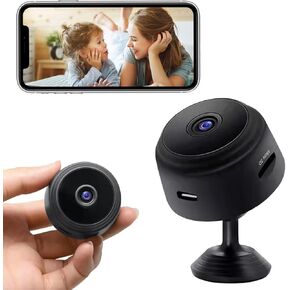 كاميرات واي فاي لاسلكية مخفية 1080P HD كاميرا تجسس صغيرة لأمن المنزل سهلة الاستخدام كاميرا داخلية لاسلكية مع كشف الحركة للرؤية الليلية -5، أسود-05
KWD 4.500
كاميرات واي فاي لاسلكية مخفية 1080P HD كاميرا تجسس صغيرة لأمن المنزل سهلة الاستخدام كاميرا داخلية لاسلكية مع كشف الحركة للرؤية الليلية -5، أسود-05
KWD 4.500
 كاميرا مراقبة، كاميرات واي فاي 2.4 جيجا هرتز و5 جيجا، كاميرات مراقبة منزلية، كاميرات مراقبة قبة 1080 بكسل، رؤية 360 درجة، كاميرا أمان مقاومة للماء مع كشف الحركة، صوت ثنائي الاتجاه (قطعة واحدة)
KWD 9.500
كاميرا مراقبة، كاميرات واي فاي 2.4 جيجا هرتز و5 جيجا، كاميرات مراقبة منزلية، كاميرات مراقبة قبة 1080 بكسل، رؤية 360 درجة، كاميرا أمان مقاومة للماء مع كشف الحركة، صوت ثنائي الاتجاه (قطعة واحدة)
KWD 9.500