- التسوق ، اصبح سهلا.
- /
- احصل على التطبيق!
Keyboard and Mouse Connection:
2.4G connection:
1.plug the USB receiver into the USB port
2.Turn the switch of keyboard and mouse to 2.4G and wait 3-5seconds and you can start using them
3. If after turn on cannot connect, you can try to re-matching: press”ESC+Q” to re-matching
keyboard ;press the “left and right” of mouse at the same time then turn the mouse
switch to 2.4G and wait 10 seconds when red light flashing you can start use it
Keyboard Bluetooth connection:
1. Turn the switch to BT
, 2. Long press”Fn+1” (or ”Fn+2” or ”Fn+3” )5 seconds to enter into pairing mode,you can see the Pairing indicator flashing
3. Open your device and turn on the Bluetooth setting to enter pairing state
4. Once you see “Keyboard 5.0”, click on it to connect
. 5. Short Press”Fn+1” /”Fn+2” / ”Fn+3” to switch between device BT1/BT2/BT3
If connection of your device and the keyboard fails,try below steps:
1.Delete all the Bluetooth devices that have been paired on your electronic device
2.Turn off the Bluetooth on your device and then turn it on
3.Power off the keyboard and turn it back on
4.Press“ Fn+1”key 5s on keyboard to reconnect with your device
Mouse Bluetooth connection:
1: Turn on the ON/OFF switch, switch to Bluetooth.
2: Turn on the Bluetooth switch of the smartphone or tablet, and search for the Bluetooth mouse“BT5.2 Mouse”.
3: Click the Bluetooth mouse “BT5.2 Mouse” to connect to the smartphone or tablet.
System Switch
Press“Fn+Q“switching to Android System,“Shift+Space”Switching languages in Android
Press”Fn+W”switching to Windows System,
Press“Fn+E”switching to iOS System,
Note: make sure the keyboard system to be consistent with your device in order to avoid wrong letter input
User Tips:
in order to have a long battery life of keyboard and mouse, please full charge them when first use and turn off the power if you are not using for a long time and charge in a timely manner when the battery level is low
Package Contains:
1 x Keyboard and mouse
1 x USB Charging Cable
1 x User Manual
 X XVX M67 اللوحة اللاسلكية بنسبة 60 ٪ ، QMK/عبر لوحة مفاتيح الألعاب الطبوغرافية ، لوحة مفاتيح ميكانيكية Tri-Mode Thocky ، لوحة مفاتيح مفاتيح مخصصة لـ Hot Swappable RGB IMD لـ Win/Mac (Jadestone)
KWD 22.500
X XVX M67 اللوحة اللاسلكية بنسبة 60 ٪ ، QMK/عبر لوحة مفاتيح الألعاب الطبوغرافية ، لوحة مفاتيح ميكانيكية Tri-Mode Thocky ، لوحة مفاتيح مفاتيح مخصصة لـ Hot Swappable RGB IMD لـ Win/Mac (Jadestone)
KWD 22.500
 -36%
لوحة مفاتيح Aula S99 Pro ، Bluetooth Tri-Mode/2.4 جيجا هرتز/USB-C لوحة مفاتيح ألعاب كريمية لطيفة مع لوحة أرقام RGB ، لوحة مفاتيح كمبيوتر مخصصة للوسائط
KWD 15
-36%
لوحة مفاتيح Aula S99 Pro ، Bluetooth Tri-Mode/2.4 جيجا هرتز/USB-C لوحة مفاتيح ألعاب كريمية لطيفة مع لوحة أرقام RGB ، لوحة مفاتيح كمبيوتر مخصصة للوسائط
KWD 15
 غطاء لوحة مفاتيح Casebuy لـ 2024 Apple Magic Keyboard مع معرف اللمس والطرازات اللطيفة A3119 Ultra Thin Protector IMAC (الإصدار الأمريكي)
KWD 3.500
غطاء لوحة مفاتيح Casebuy لـ 2024 Apple Magic Keyboard مع معرف اللمس والطرازات اللطيفة A3119 Ultra Thin Protector IMAC (الإصدار الأمريكي)
KWD 3.500
 -15%
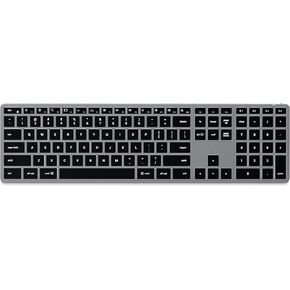
لوحة مفاتيح Satechi Slim X3 Bluetooth مع لوحة مفاتيح مفاتيح Numeric-مفاتيح مضاءة ومزامنة متعددة الأجهزة-لـ M2/ M1 MacBook Pro/ Air ، M2/ M1 iPad Pro/ Air ، M2 Mac Mini ، Imac M1 (Space Gray)
KWD 31.500
-15%
لوحة مفاتيح Satechi Slim X3 Bluetooth مع لوحة مفاتيح مفاتيح Numeric-مفاتيح مضاءة ومزامنة متعددة الأجهزة-لـ M2/ M1 MacBook Pro/ Air ، M2/ M1 iPad Pro/ Air ، M2 Mac Mini ، Imac M1 (Space Gray)
KWD 31.500