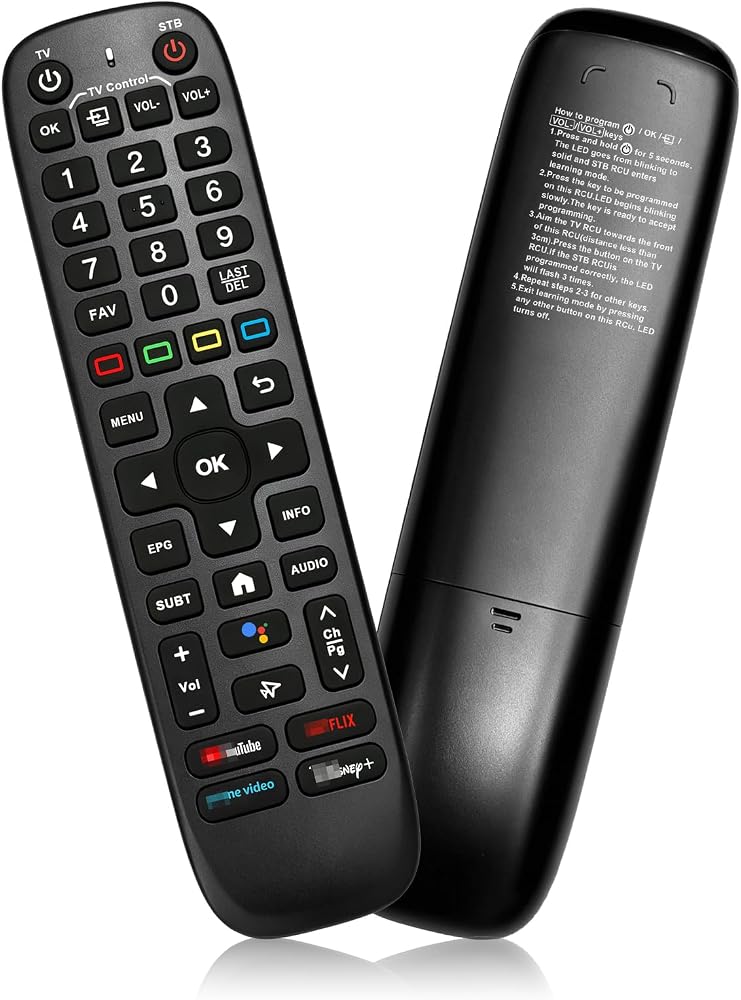
[Multi-Device Compatibility] This V6 Plus Voice Remote is compatible with vSeeBox select models, including vSeeBox V5 Pro, V3 Plus, V3 Pro, Note: V1 Max, V1 Pro, and V2 Pro do not support voice command functionality.
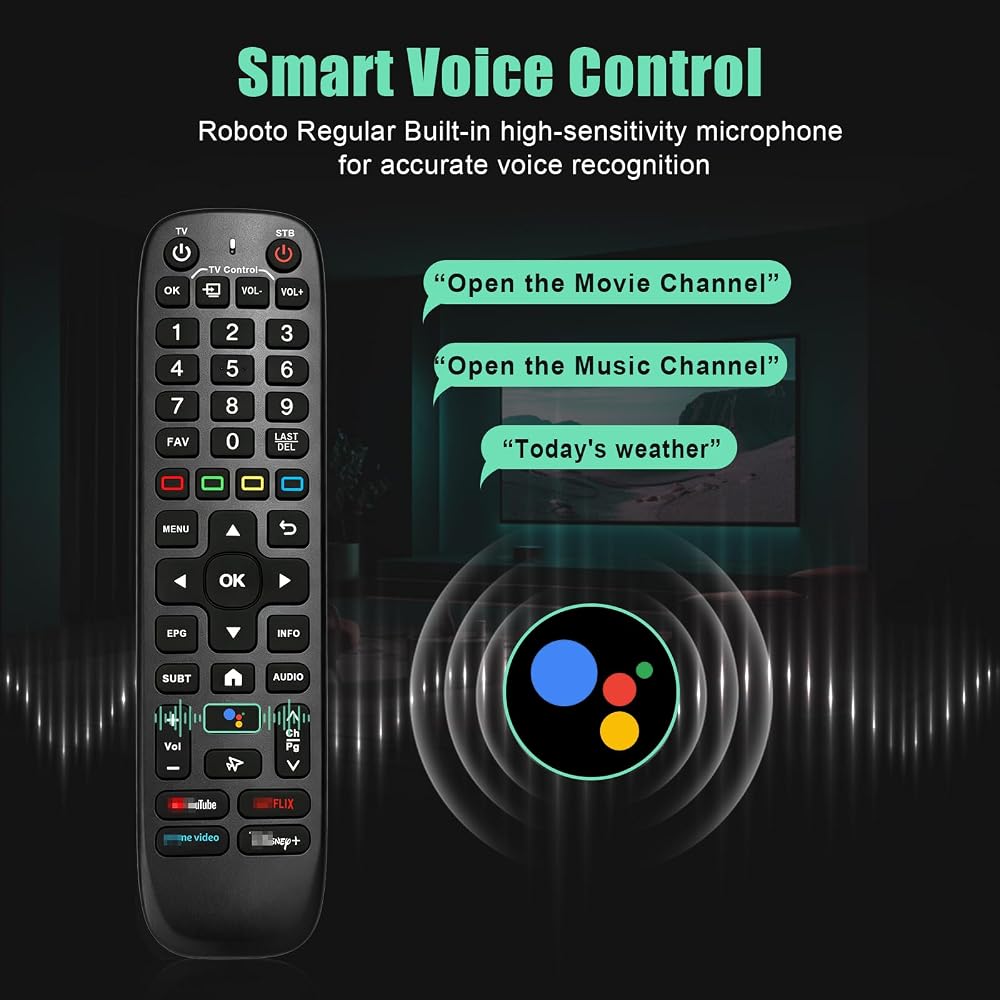
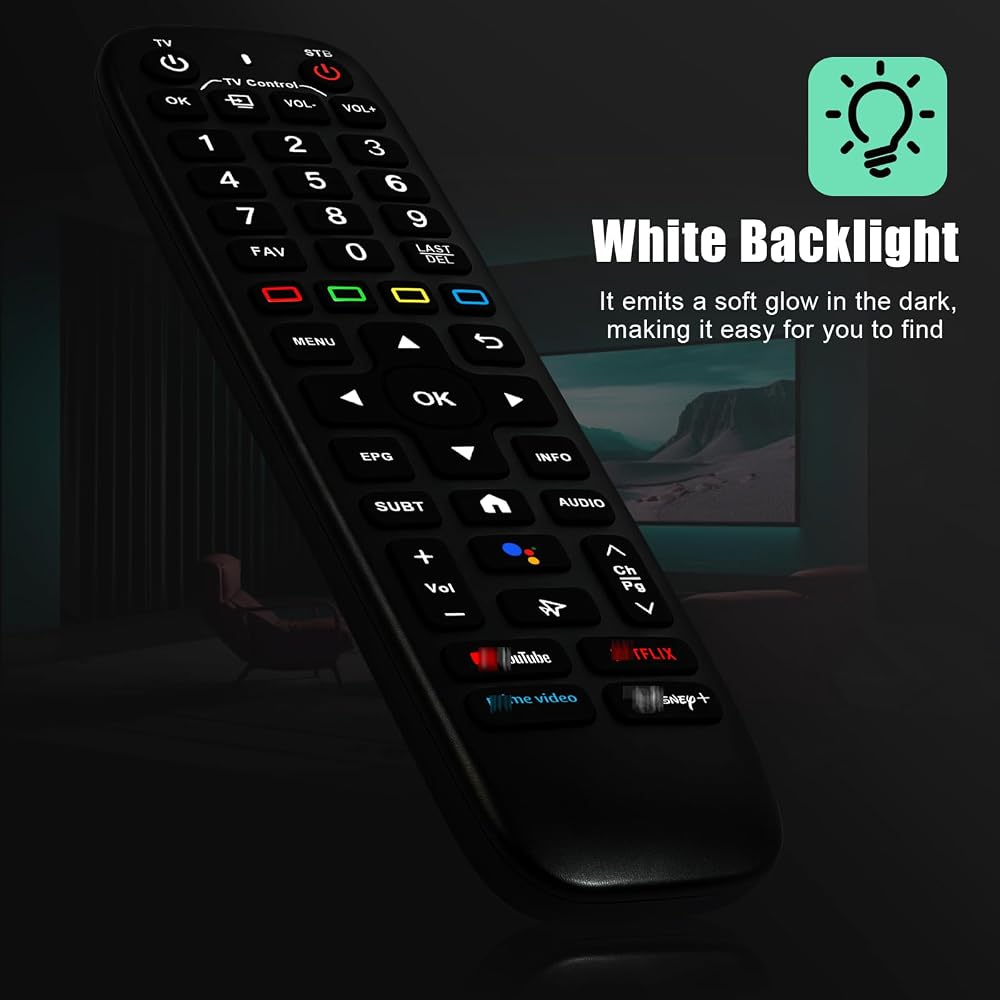
[Backlight remote control] V6plus Voice Remote Control features illuminated buttons. When buttons are hard to see at night, touch any button to activate the backlight for easier visibility. Its voice control is exceptionally convenient—use voice commands to switch channels, adjust volume, or search for movies.. (Note: Voice control is not supported on some models.)
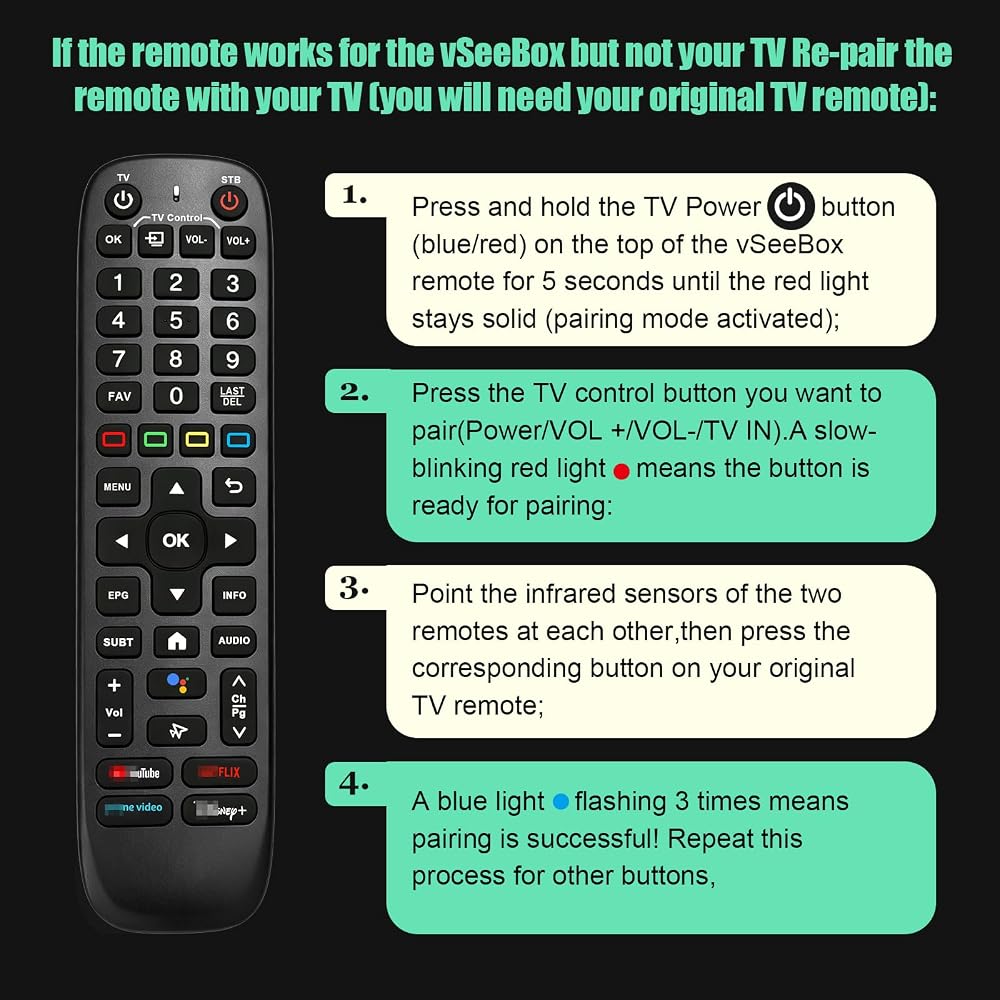
[Learning the instructions for the remote control] 1. Press and hold the Power button for 5 seconds until the LED stays lit; 2. Press the button within the V5 remote control area to program; 3. Align the V6 remote control face-to-face with the remote, then press the button. If programming succeeds, the LED will flash 3 times; 4. Repeat steps 2-3 to program remaining buttons; 5. Press any other button to exit learning mode, LED turns off.
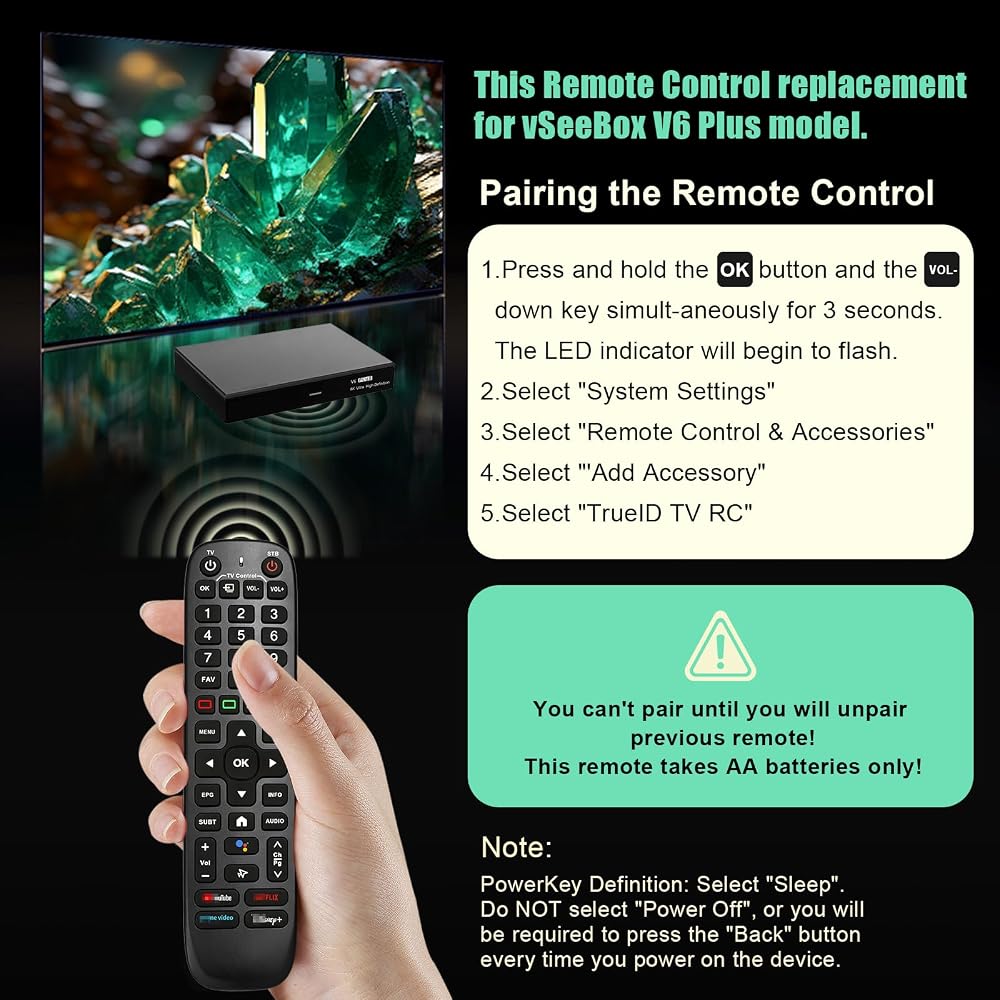
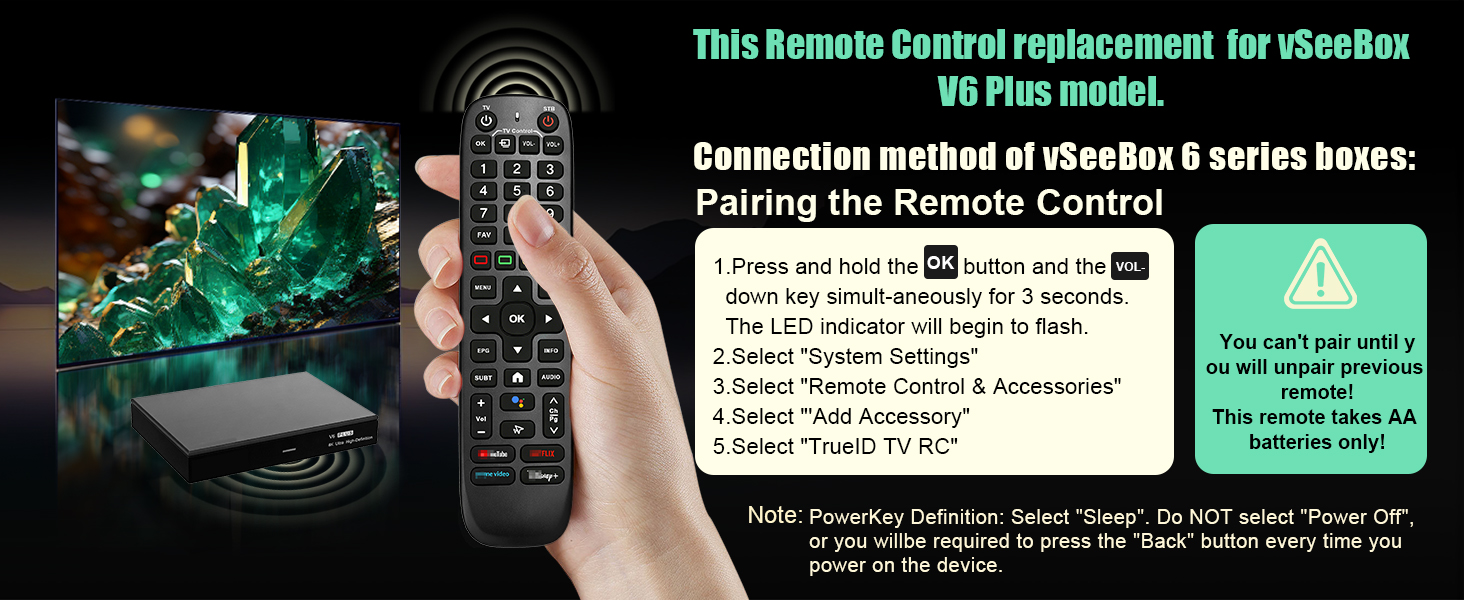
[Quick Pairing] Simultaneously press and hold the OK and Vol- buttons (approximately five seconds) until remote's indicator light flashes continuously, indicating Bluetooth is enabled on the V6 Plus remote. Navigate to System Settings- Bluetooth - Pair New Device, locate the remote, and connect to device. If pairing fails, please remove the old device from the system first, then follow the steps again.
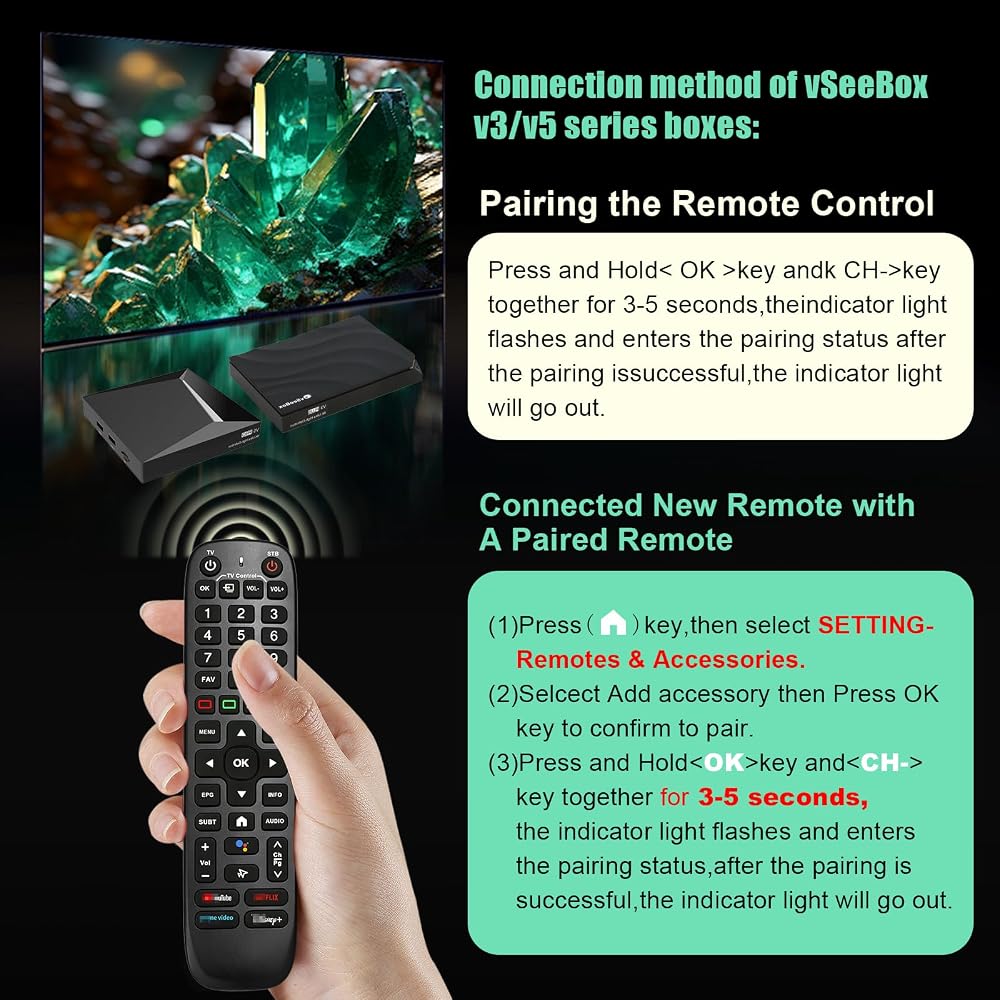
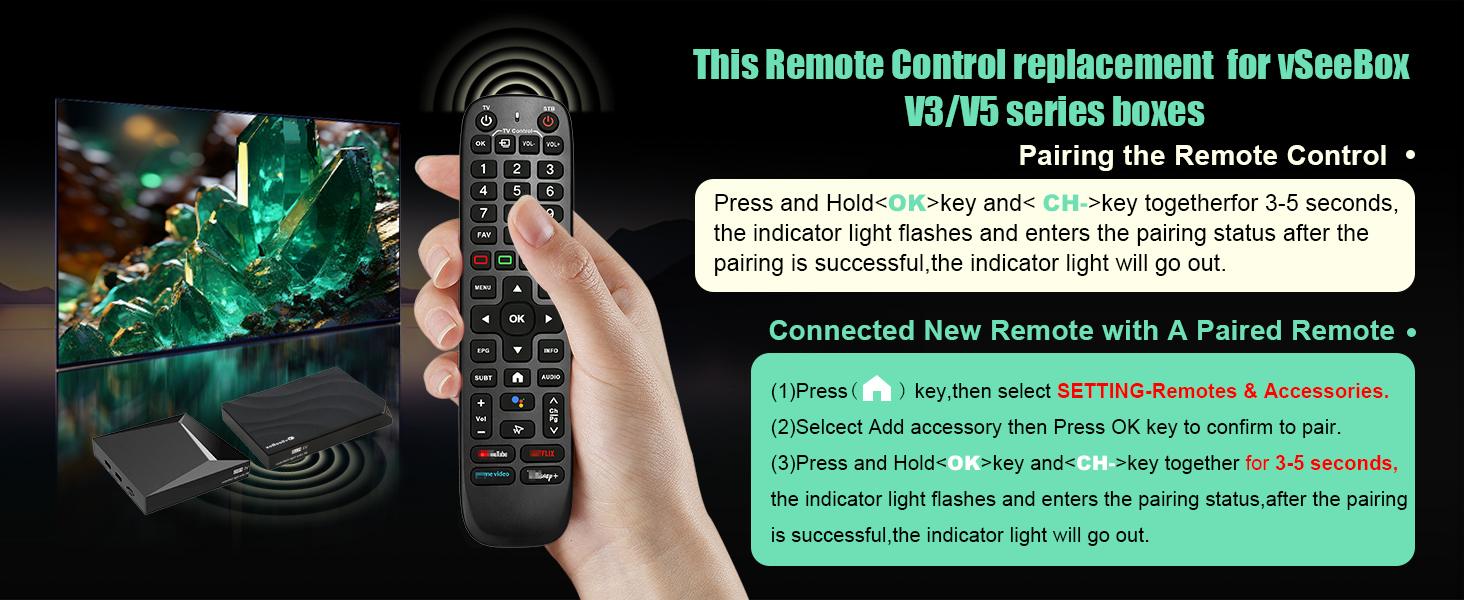
[Vseebox remote V3PRO V3PLUS V5PRO User Manual] Connection method of vSeeBoxv3/v5 series boxes:Pairing the Remote Control Press and Hold< OK >key andk CH->key togetherfor 3-5 seconds,theindicator light flashes and enters the pairing status after the pairing issuccessful,the indicator light will go out. Connected New Remote with A Paired Remote (1)Press (Home) key,then select SETTING-Remotes & Accessories. (2)Selcect Add accessory then Press OK key to confirm to pair. (3)Press and Hold< OK >key andk CH->key togetherfor3-5 seconds,the indicator light flashes and enters the pairing status,after the pairingis successful,the indicator light will go out.
[Power Requirements & Setup] This remote requires 2 x AA batteries for Use (not included). For troubleshooting, if the device fails to function initially, simply try re-pairing it with your TV box to restore full smart control.
 Pack of 2 Universal Replace Remote Applicable for TCL Roku TV
KWD 3
Pack of 2 Universal Replace Remote Applicable for TCL Roku TV
KWD 3
 LMP-H220 Original UHP225W Replacement Lamp with Housing for Sony VPL-VW365ES VPL-VW360ES VPL-VW320ES VPL-VW385ES VPL-VW315N VPL-VW295ES VPL-VW285ES VPL-VW270ES VPL-VW260ES VPL-SW620
KWD 53.500
LMP-H220 Original UHP225W Replacement Lamp with Housing for Sony VPL-VW365ES VPL-VW360ES VPL-VW320ES VPL-VW385ES VPL-VW315N VPL-VW295ES VPL-VW285ES VPL-VW270ES VPL-VW260ES VPL-SW620
KWD 53.500
 EN3R39S بديل للتحكم عن بعد للتلفزيون شارب الذكي
KWD 3
EN3R39S بديل للتحكم عن بعد للتلفزيون شارب الذكي
KWD 3
 جهاز التحكم عن بعد AA59-00666A الجديد استبدال ل سامسونج تلفزيون LCD HDTV AA5900666A LH32HDPLGA LH40HDPLGA LH46HDPLGAZA UN32EH4003V UN55EH6001V
KWD 3
جهاز التحكم عن بعد AA59-00666A الجديد استبدال ل سامسونج تلفزيون LCD HDTV AA5900666A LH32HDPLGA LH40HDPLGA LH46HDPLGAZA UN32EH4003V UN55EH6001V
KWD 3