- التسوق ، اصبح سهلا.
- /
- احصل على التطبيق!
We sells laptop-computer with upgraded configurations. If the computer has modifications (listed above), then the manufacturer box is opened for it to be tested and inspected and to install the upgrades to achieve the specifications as advertised. If no modifications are listed, the item is unopened and untested. Defects & blemishes are significantly reduced by our in depth inspection & testing.
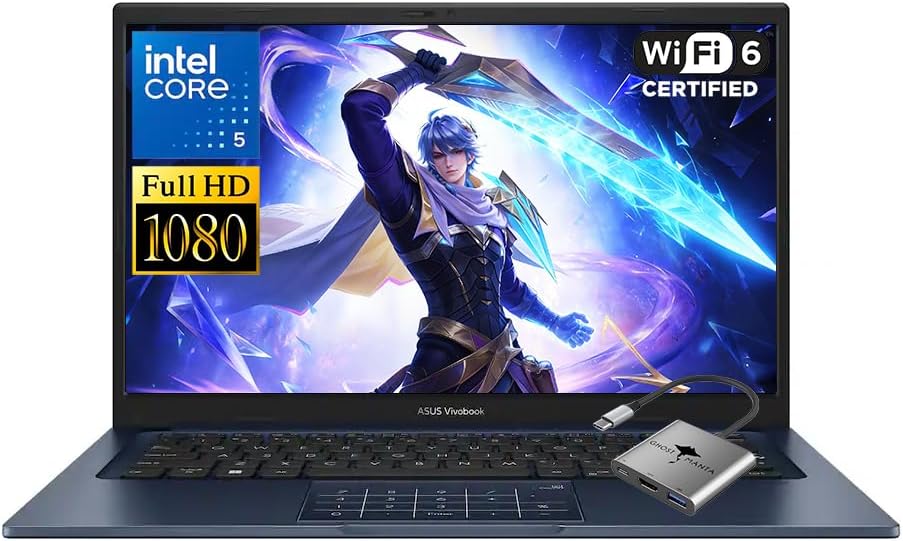
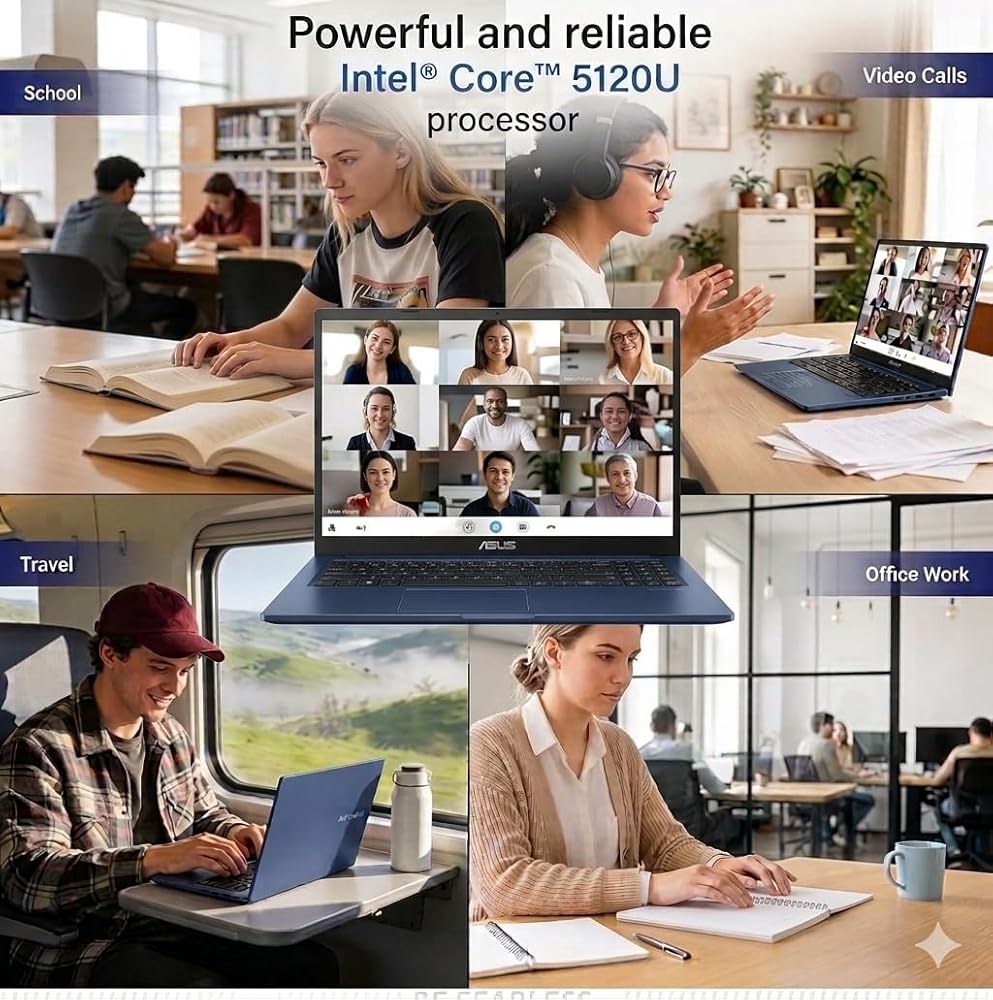
Microprocessor: Intel Core 5 120U(10 Cores, up to 5 GHz)
Memory: Upgraded to 16GB DDR4 RAM
Solid state drive capacity: Upgraded to 1TB SSD(expandable up to 2TB)
Video graphics: Intel Graphics
Display: 14" FHD(1920×1080) display
Wireless connectivity: Wi-Fi 6 and Bluetooth
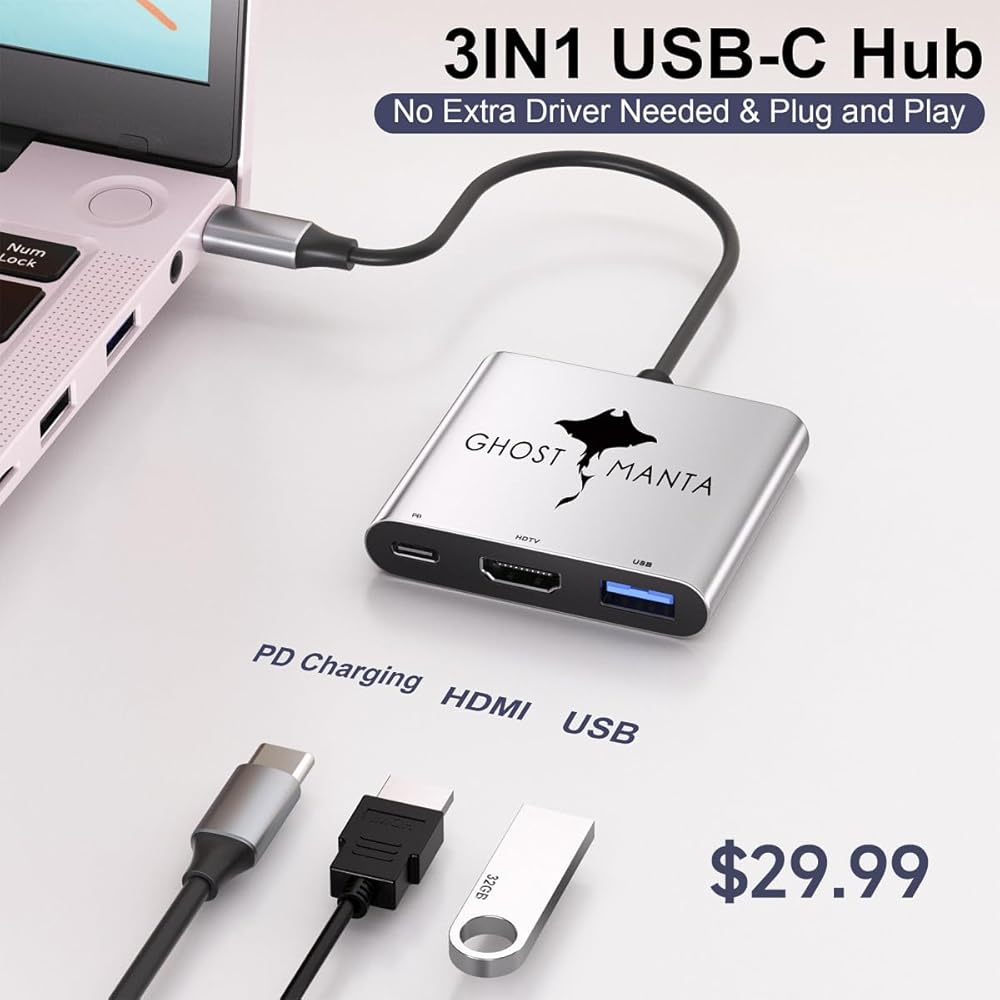
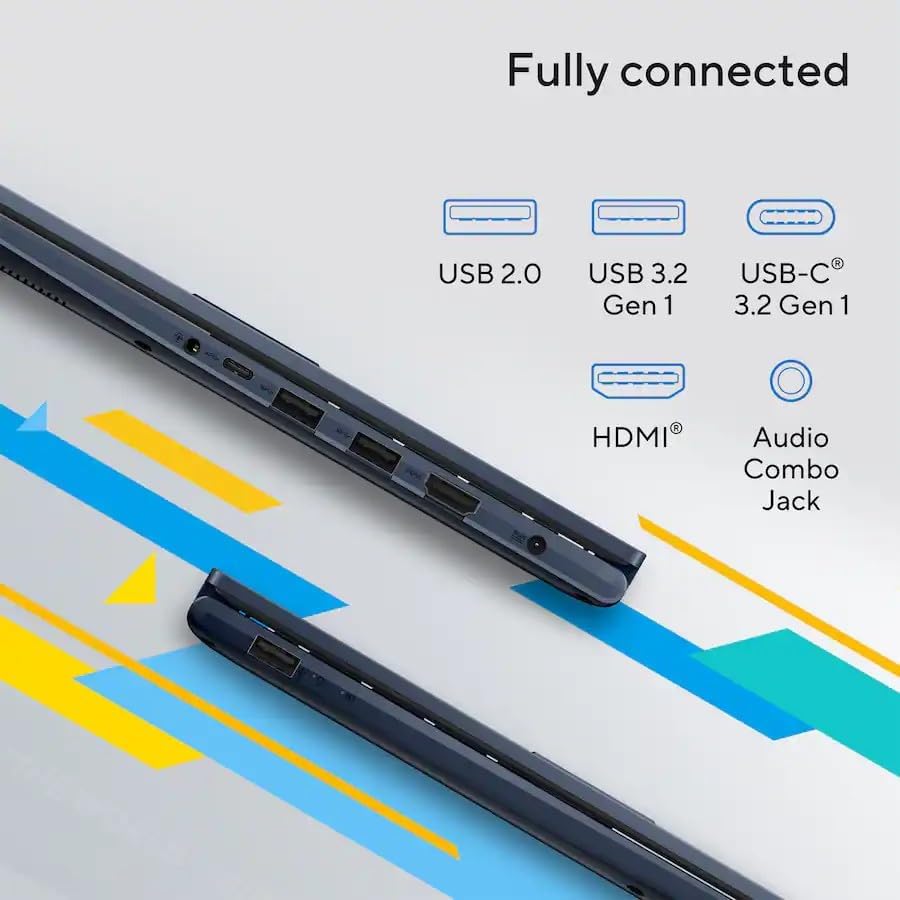
External ports: 1 x USB 3.2 Type-C | 2 x USB 3.2 Type-A | 1 x USB 2.0 Type-A | 1 x HDMI 1.4 | 1 x DC Jack
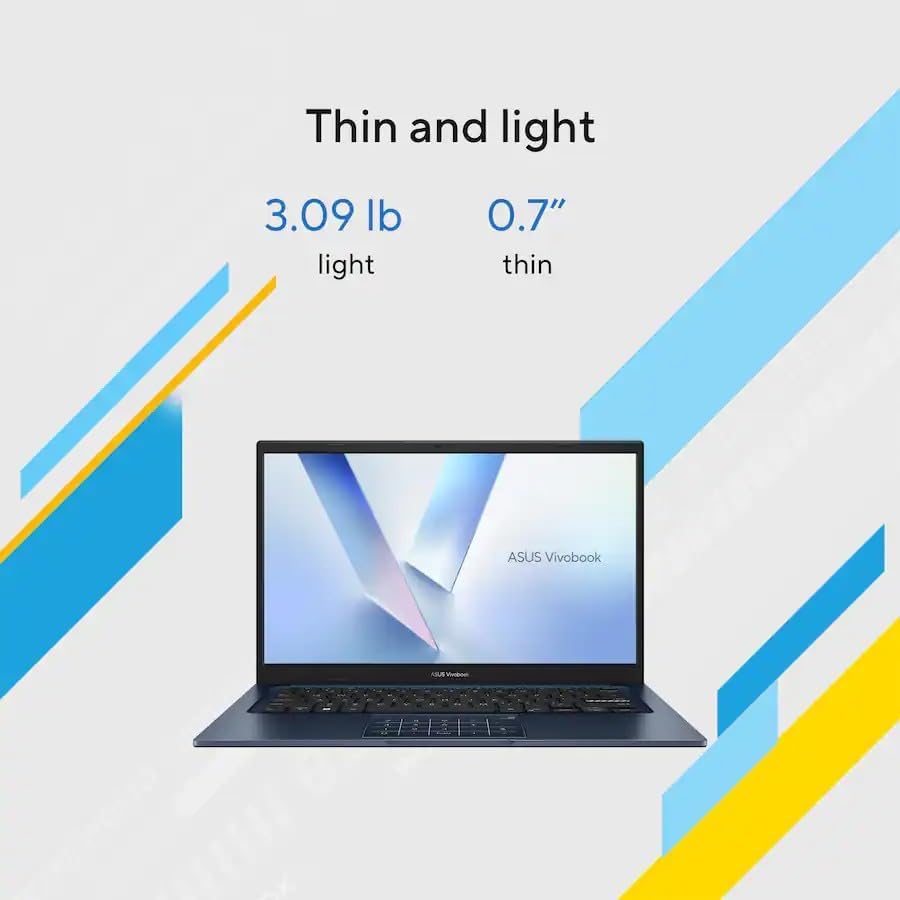
Minimum dimensions (W x D x H): 12.79 x 8.42 x 0.7 in
Weight: 3.09 LB
Battery life mixed usage: Up to 8 hours
Operating system: Windows 11 Home in S Mode
Switching out of S mode in Windows 11
Windows 11 in S mode is designed for security and performance, exclusively running apps from the Microsoft Store. If you want to install an app that isn't available in the Microsoft Store, you'll need to switch out of S mode
1. On your PC running Windows 11 in S mode, open Settings > System > Activation.
2. In the Switch to Windows 11 Pro section, select Go to the Store. (If you also see an "Upgrade your edition of Windows" section, be careful not to click the "Go to the Store" link that appears there.)
3. On the Switch out of S mode (or similar) page that appears in the Microsoft Store, select the Get button. After you see a confirmation message on the page, you'll be able to install apps from outside of the Microsoft Store.
 Asus Rog Strix 16 "QHD 240Hz Gaming Laptop | Intel Core I9-14900HX | GeForce RTX 4060 | RGB Backlit | Black | 32GB RAM DDR5 |
KWD 778.500
Asus Rog Strix 16 "QHD 240Hz Gaming Laptop | Intel Core I9-14900HX | GeForce RTX 4060 | RGB Backlit | Black | 32GB RAM DDR5 |
KWD 778.500
 Asus Rog Strix G18 G18 Gaming Captop ، مع Office 2024 LifeTime ، 18 "2.5k 16:10 240Hz Display ، Intel 24 Core I9-14900HX ، RTX 4060 ، 64GB DDR5 ، 2TB SSD ، Backlit Keyboard ، WIFI 6E ، Windows 11 Pro
KWD 799.500
Asus Rog Strix G18 G18 Gaming Captop ، مع Office 2024 LifeTime ، 18 "2.5k 16:10 240Hz Display ، Intel 24 Core I9-14900HX ، RTX 4060 ، 64GB DDR5 ، 2TB SSD ، Backlit Keyboard ، WIFI 6E ، Windows 11 Pro
KWD 799.500
 Asus Vivobook S 16 Flip 2-in-1 Laptop ، 16 "شاشة اللمسات ، Intel Core I9-13900H ، 40 جيجا بايت SSD ، 4TB SSD ، كاميرا الويب ، HDMI ، Wi-Fi 6 ، Windows 11 Home ، Midnight Black Home
KWD 329
Asus Vivobook S 16 Flip 2-in-1 Laptop ، 16 "شاشة اللمسات ، Intel Core I9-13900H ، 40 جيجا بايت SSD ، 4TB SSD ، كاميرا الويب ، HDMI ، Wi-Fi 6 ، Windows 11 Home ، Midnight Black Home
KWD 329
 كمبيوتر محمول للألعاب ASUS TUF Gaming F16، شاشة 16 بوصة FHD+ 144 هرتز IPS-Level 16:10، Intel® Core™ 5 210H، NVIDIA® GeForce RTX™ 4050، 16 جيجابايت DDR5، 512 جيجابايت PCIe Gen4 SSD، Wi-Fi 6، Win11 Home، FX607VU-SS53
KWD 393
كمبيوتر محمول للألعاب ASUS TUF Gaming F16، شاشة 16 بوصة FHD+ 144 هرتز IPS-Level 16:10، Intel® Core™ 5 210H، NVIDIA® GeForce RTX™ 4050، 16 جيجابايت DDR5، 512 جيجابايت PCIe Gen4 SSD، Wi-Fi 6، Win11 Home، FX607VU-SS53
KWD 393