- التسوق ، اصبح سهلا.
- /
- احصل على التطبيق!
Notes, Setup Steps, and Reset Operations:
*Notes:
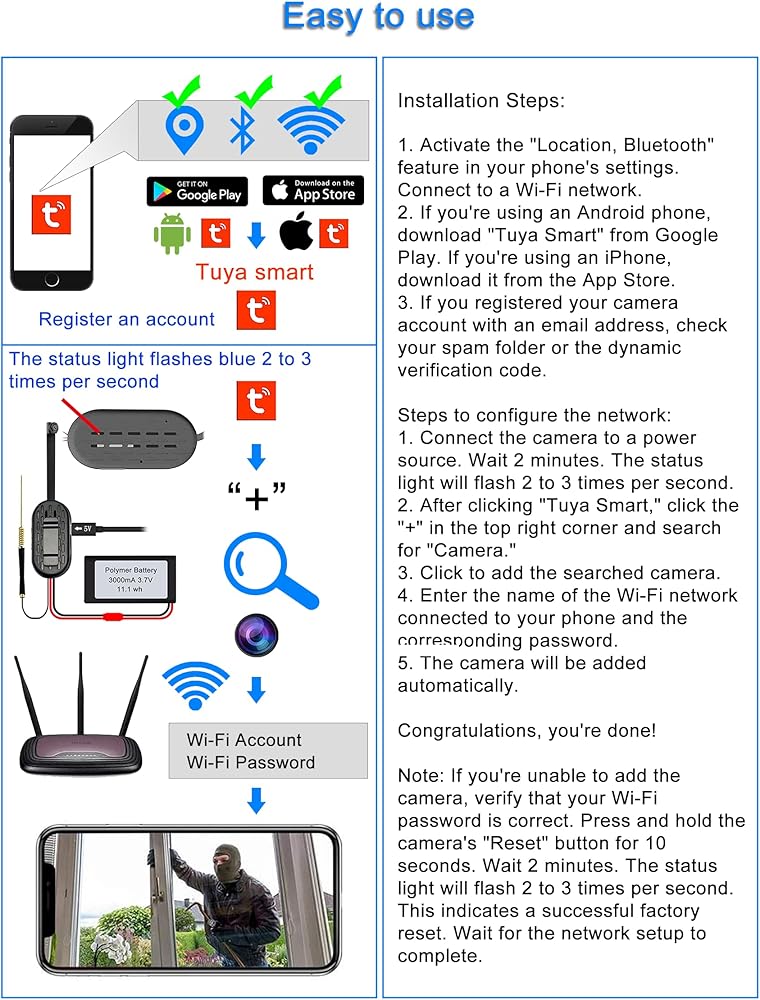
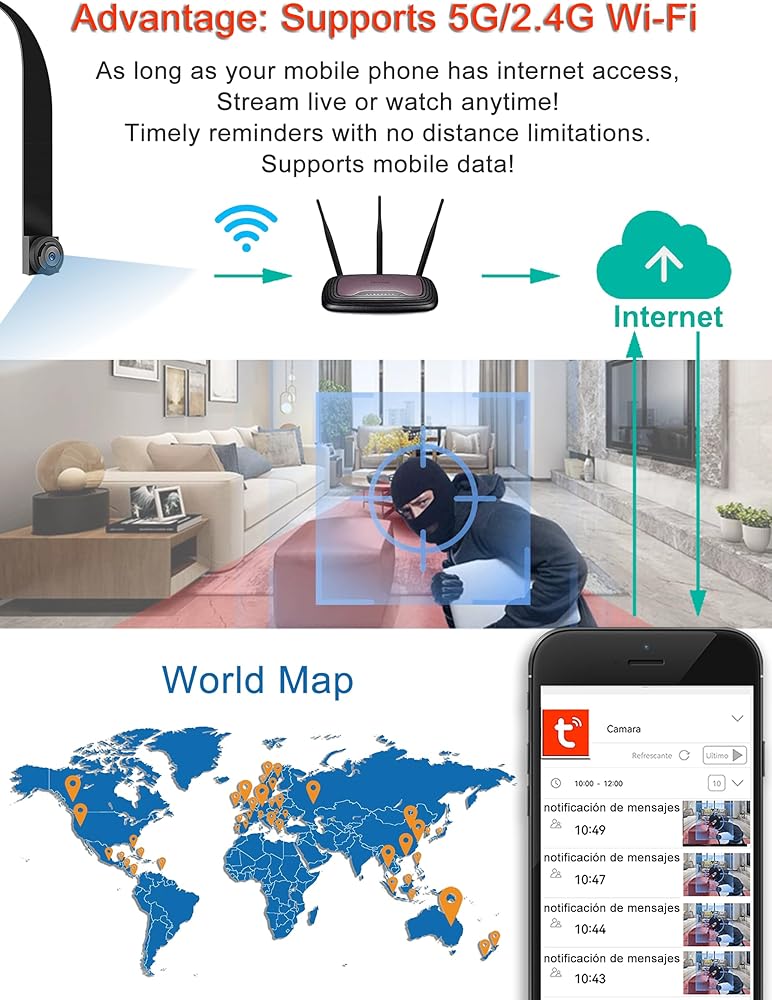
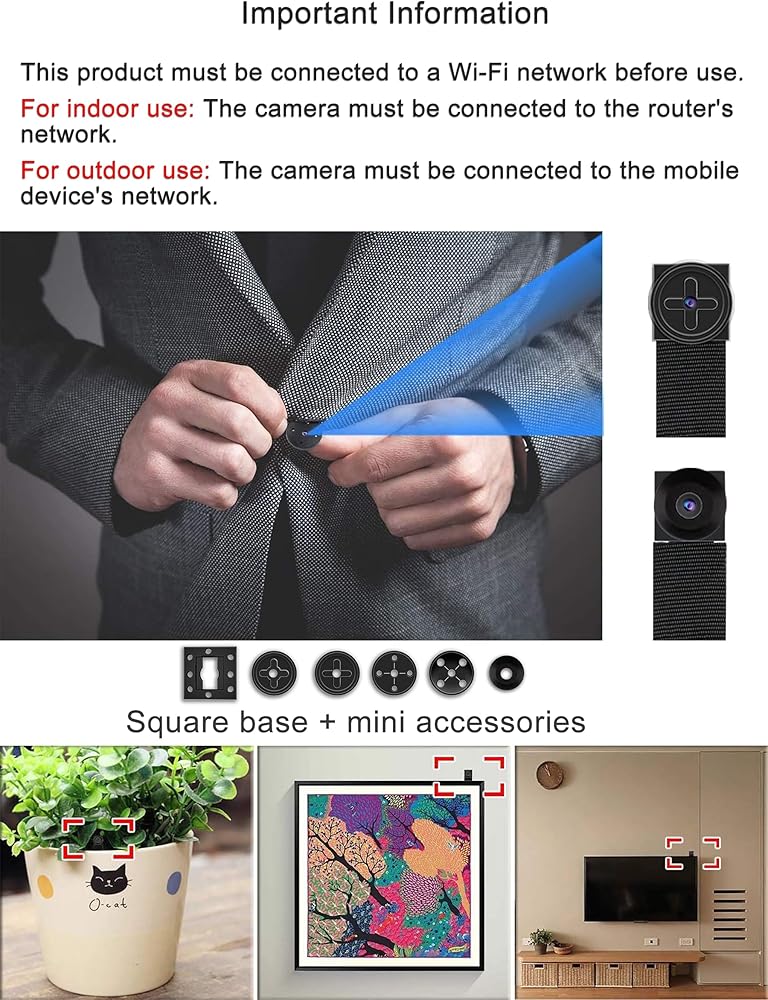
1. Before configuring the camera's Wi-Fi, your mobile phone must have Bluetooth and location services enabled and be connected to a Wi-Fi . The camera must be properly connected to Wi-Fi to function. The camera supports 2.4G/5G/4G.
2. When installing the Tuya Smart App, you must allow app permissions. If you register your camera account using an email address, the verification code sent by the camera app may be blocked by your email service provider. Therefore, please check your spam folder for the verification code. To ensure successful camera account registration, you can also register using another account.
3. Before setting up the camera, please check and back up your current Wi-Fi password on your phone. During the pairing process, be sure to enter the correct Wi-Fi password to ensure successful setup; otherwise, the camera will not connect. If the setup fails, you must first restore the camera to factory settings before resetting the .
4. During the setup process: Please keep the distance between your phone, camera, and Wi-Fi device within 3 meters. To ensure successful setup, please enter the correct Wi-Fi password. After setup is complete, you can remotely control the camera via your phone regardless of distance. When using outdoors, please ensure that your phone's data transmission function is enabled.
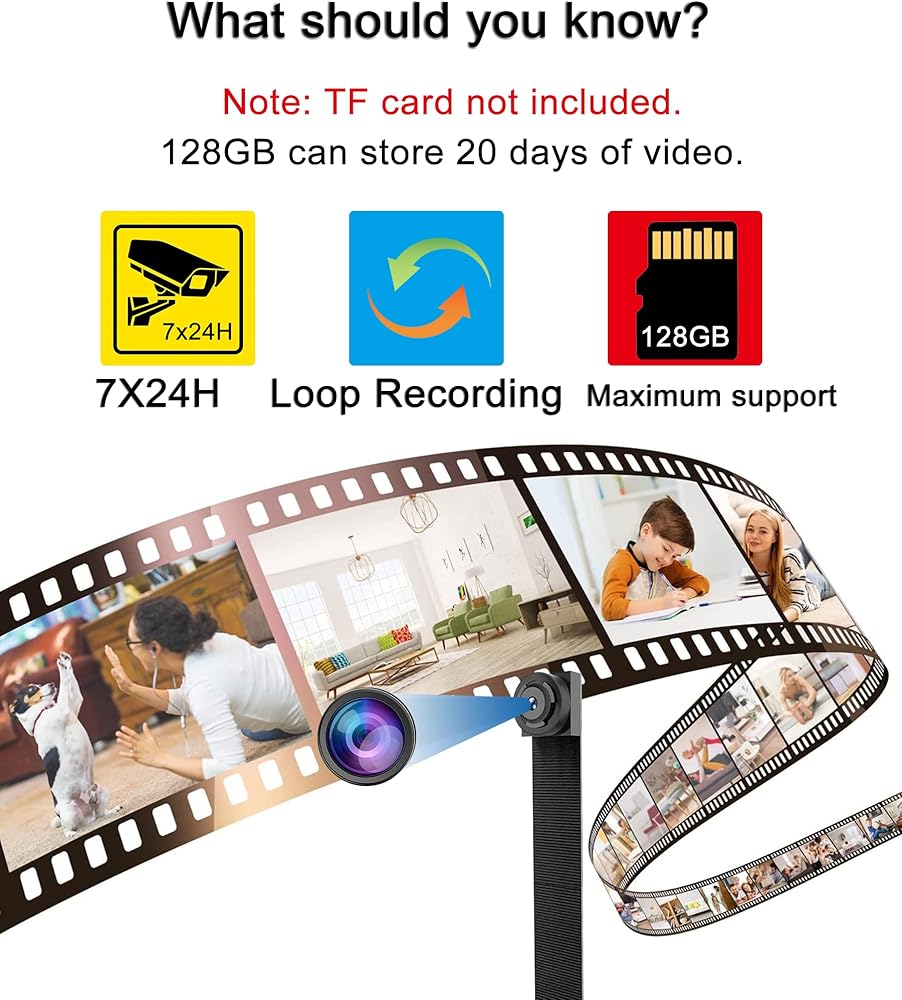
5. Note: The videos on the TF card are encrypted and cannot be read by a computer. You can view the videos in the camera app on your phone; you can also save the videos by clicking the "Record" icon in the app. 6. It is normal for the camera to heat up; we have conducted safety checks. Do not place the camera in a metal casing to avoid signal interference.
**When do you need to reset the camera?
If the setup fails. If the Wi-Fi environment changes. If the camera loses connection for unknown reasons. In these cases, you need to reset the camera. Please also check that the password and steps you entered are correct. How to restore the camera to factory settings? 1. After connecting the camera to the power supply, wait one minute. Using the included stylus, press and hold the reset button or "R" button on the camera for about 10 seconds, then release. After two minutes, when the blue indicator light flashes two to three times per second, the reset is successful. You can then begin configuring the camera to connect to your . ***Camera Setup Steps: 1. Turn on Bluetooth, enable location tracking, and connect your phone to a Wi-Fi. Download and install the Tuya Smart app on your phone. Please refer to the "Important Notes" above. 2. Register a camera account. Please refer to the "Important Notes" above. 3. Connect the camera to a power source. After two minutes, the blue indicator light will flash two to three times per second, indicating successful setup. This means the camera is working correctly and is waiting for Wi-Fi configuration. If the indicator light does not flash, please refer to the "Resetting the Camera" section above. 4. Open the Tuya Smart app, and tap the "+" or "Add Device" in the upper right corner. The app will automatically search for nearby smart cameras. Tap on the scanned "Smart Camera". 5. Select the name of the Wi-Fi you want to connect to and enter the correct password. An incorrect password will result in a connection failure. 6. After a two-minute countdown, the connection is complete. You can now start using the device. You can view live footage or configure other functions.
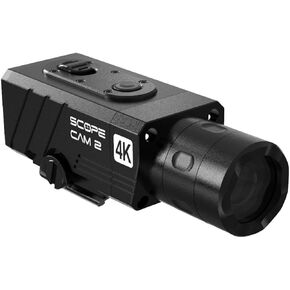 SCOPE CAM 2 4K WIFI Hunting Metal Pov Camera 25mm مع كابل مسبق
KWD 98.500
SCOPE CAM 2 4K WIFI Hunting Metal Pov Camera 25mm مع كابل مسبق
KWD 98.500
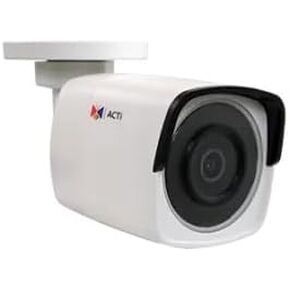 A310 - 4MP كاميرا رصاصة مصغرة مع الأشعة تحت الحمراء ، WDR المتطرفة ، والعدسة الثابتة
KWD 230
A310 - 4MP كاميرا رصاصة مصغرة مع الأشعة تحت الحمراء ، WDR المتطرفة ، والعدسة الثابتة
KWD 230
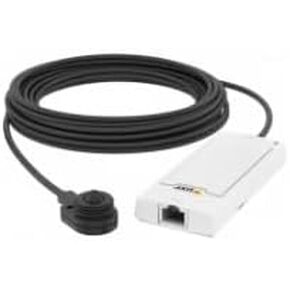 P1265 AXIS (0927-001) HDTV 1080p Pinhole Network Camera Sensor مع كابل 8M
KWD 242.500
P1265 AXIS (0927-001) HDTV 1080p Pinhole Network Camera Sensor مع كابل 8M
KWD 242.500
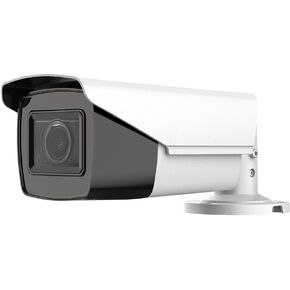 LTCMHR9653D-ZFN ، البلاتين ، HD-TVI ، 5 ميجابكسل كاميرا رصاصة متنوعة
KWD 105.500
LTCMHR9653D-ZFN ، البلاتين ، HD-TVI ، 5 ميجابكسل كاميرا رصاصة متنوعة
KWD 105.500