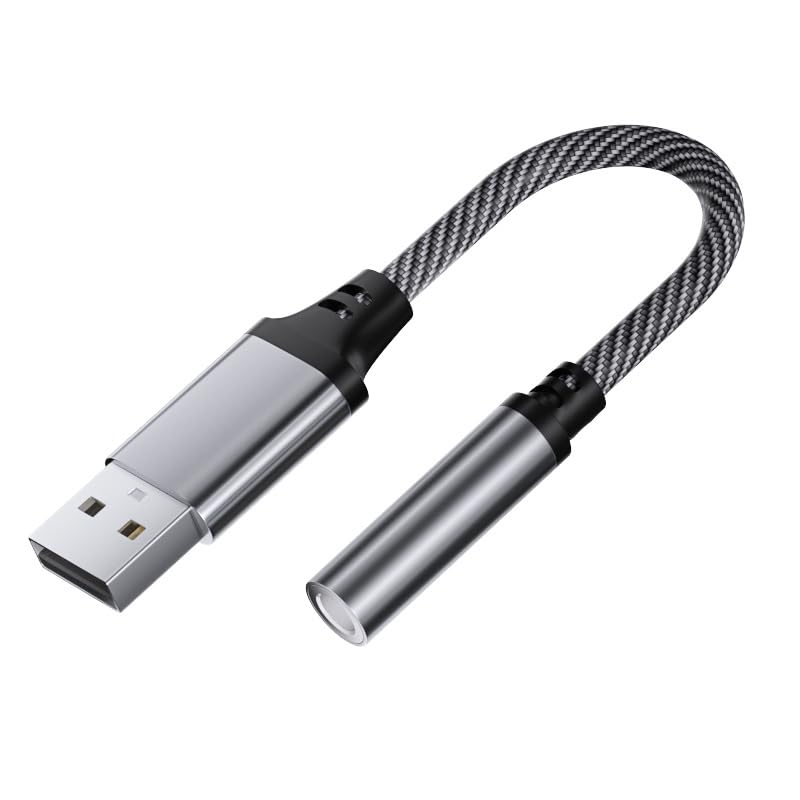
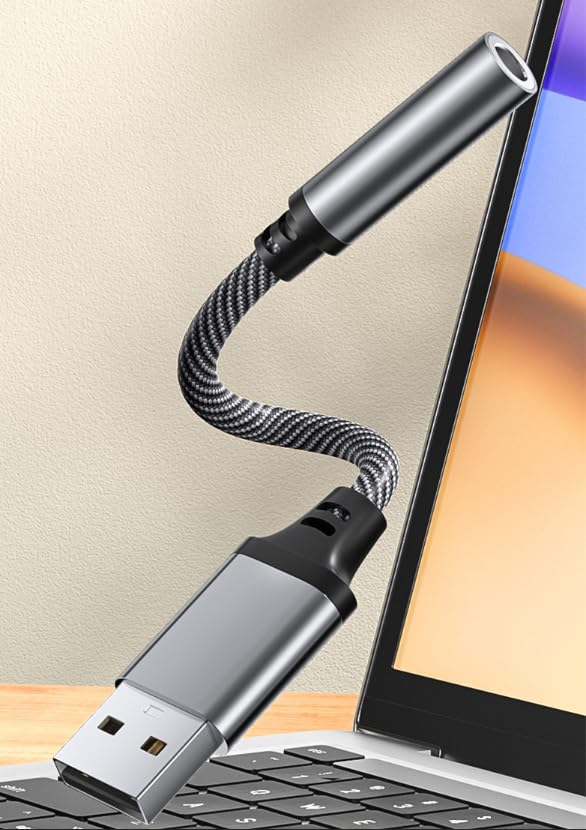
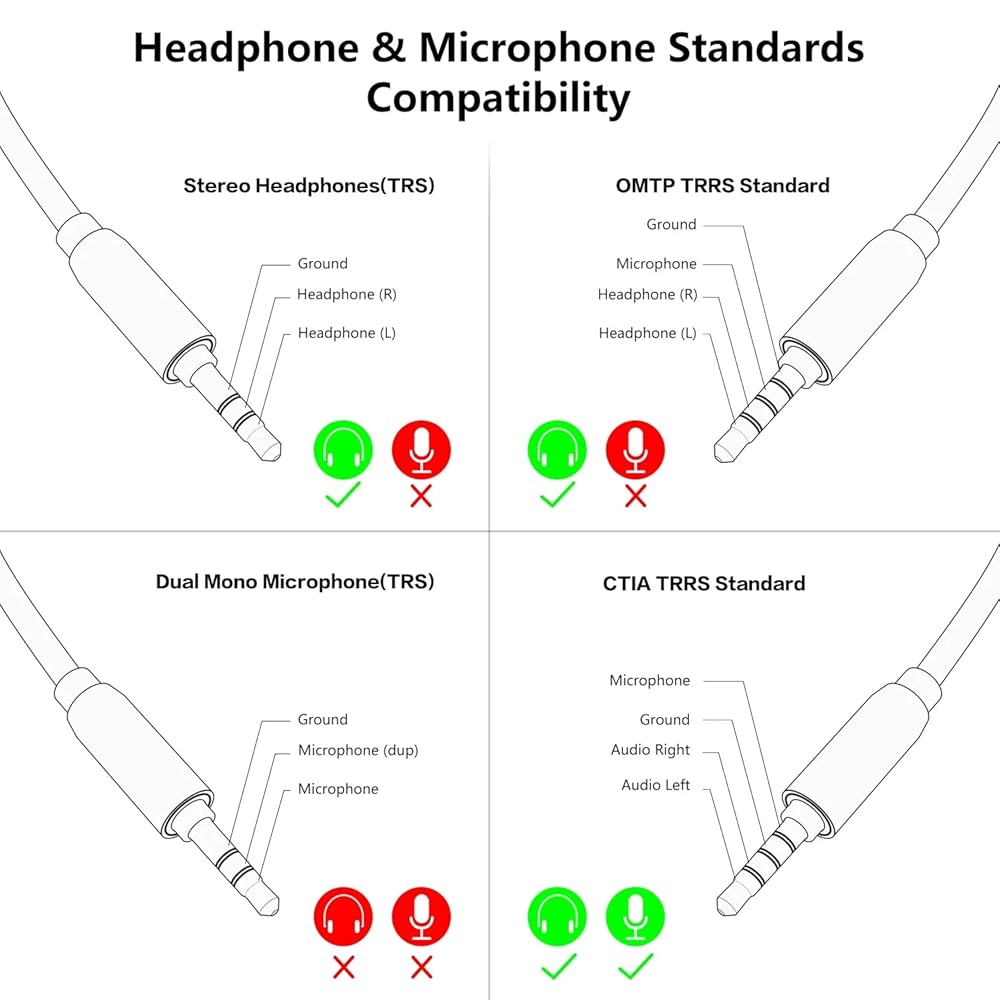
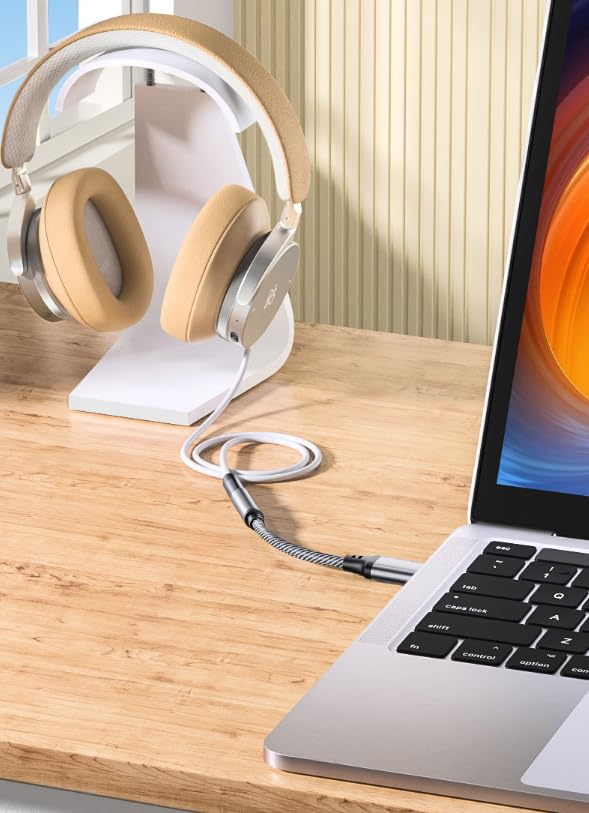
Compatibility: This USB to aux adapter fits various platforms and systems, Windows 10/8.1/8/7/Vista/XP, OS X, Linux, Google Chromebook, Windows Surface 3 pro, Raspberry Pi, etc. Convert the USB port of a PC, Laptop, Desktop, or PS4... to a TRRS 4-pin audio jack, for connecting a 3.5mm headset or speakers. (NOT compatible with IOS standard headphones, TV, amplifier, car, PS3).
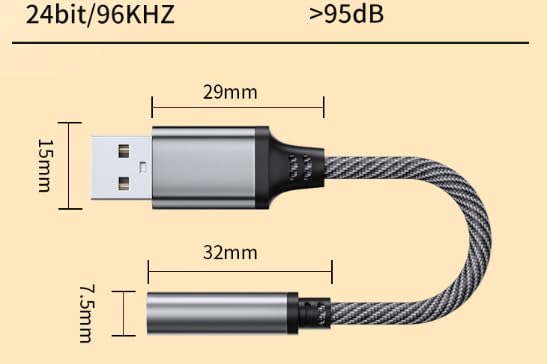
Driver Free, Plug & Play: Easy to set up, no driver required, just plug and play! USB bus-powered, no external power required. Compact body size and 1-feet-more-length design make sure you will not interfere with other devices when using other USB ports. Perfect for carrying this 3.5mm to USB adapter in a pocket to the office, conference room, or at home.
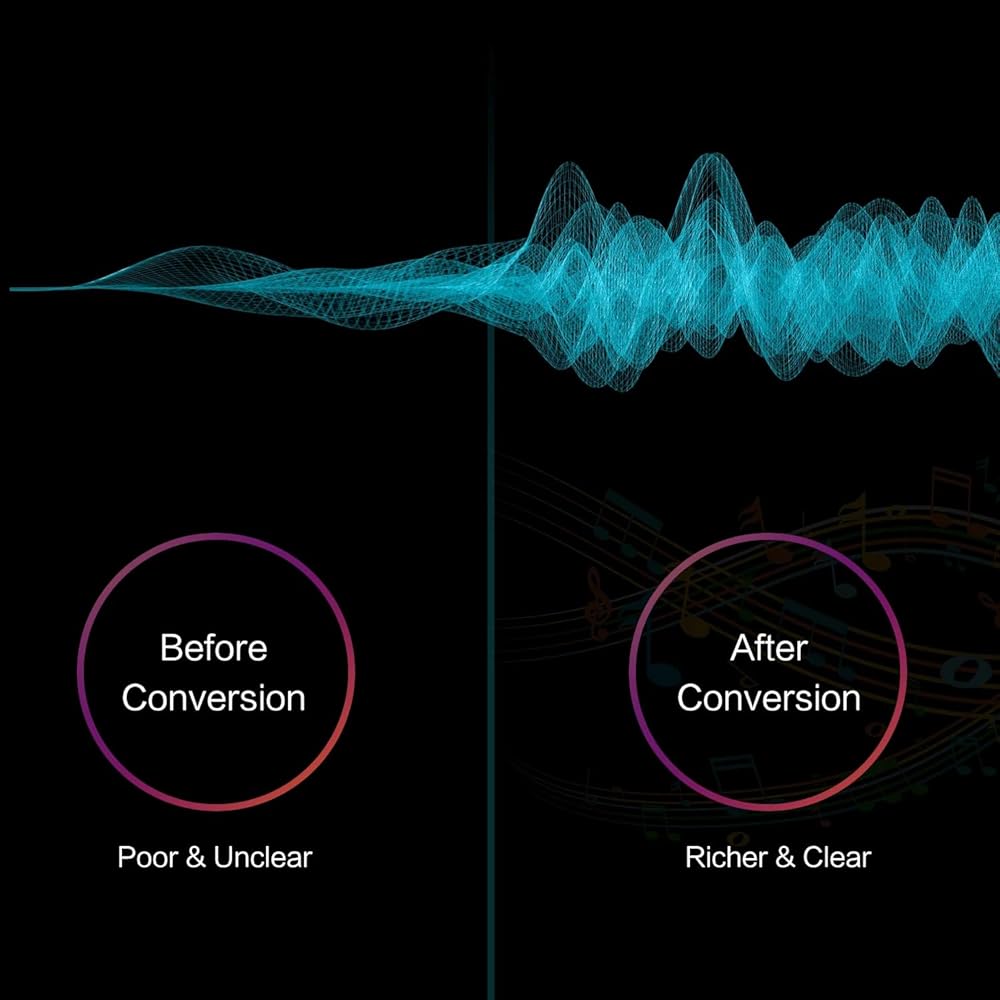
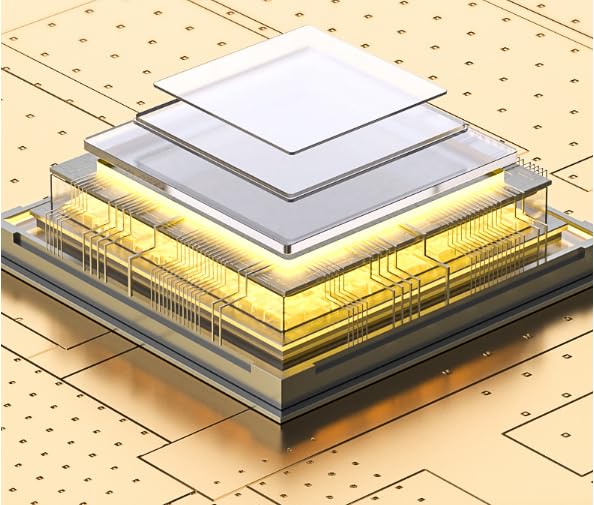
Premium Materials: Built-in smart Chipset for high-speed audio signal decoding and offers a full and delicate tone, highly restored quality sound. Robust Sapphire Blue Metal Housing ensures a wear-resistant, anti-corrosion, solid protection, and charming appearance. This USB-to-audio jack adapter tightly combines 20 Strands of three Cores, enameled copper, and soft and durable PVC covers. Its high-density shielding protection ensures high stability sound transmission and a soft touch.
Reliable Warranty: MillSO offers an unconditional Warranty for our audio jack to USB external sound card to guard against any quality trouble. Just contact us for our MillSO 24-hour customer support team. Our warm support team will solve any problem for you.
No Drivers Needed Plug and play, easily add a 3.5mm TRRS aux port for your devices, or use it as a replacement for a failed USB sound card audio adapter. Built-in Smart Chip Built-in smart chipset for high-speed audio signal decoding, offering a full and delicate tone, and highly restored quality sound.
وصف
Configuration Instructions IOS system-Settings: Go to System Preferences > Sound > C-Media USB Headset > Output or Input > Volume IOS system-Test: Mic ok; the left and right channels of headsets may reverse on some devices. Windows system-Settings: Step1: Right-click on the sound icon in the taskbar; Step2: Select Playback or Recording devices; Step3: Adjust the volume on the computer and in the application. Windows system-Test: Mic ok; the left and right channels ok.
 تي شيرت للكلاب الأليفة، ملابس صيفية للكلاب، ملابس للحيوانات الأليفة للكلاب، سترة ناعمة لطيفة لفريق كرة القدم
KWD 4.500
تي شيرت للكلاب الأليفة، ملابس صيفية للكلاب، ملابس للحيوانات الأليفة للكلاب، سترة ناعمة لطيفة لفريق كرة القدم
KWD 4.500
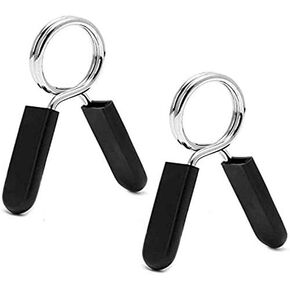 Hididi 1 بوصة (25 مم) أطواق بمشبك زنبركي من الحديد، رائعة لمشابك شريط بقطر 1 بوصة للدمبل العادي وأطواق قفل زنبركية لرفع الأثقال وتدريب القوة
KWD 2.500
Hididi 1 بوصة (25 مم) أطواق بمشبك زنبركي من الحديد، رائعة لمشابك شريط بقطر 1 بوصة للدمبل العادي وأطواق قفل زنبركية لرفع الأثقال وتدريب القوة
KWD 2.500
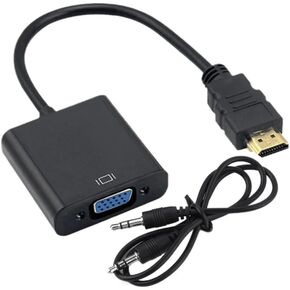 HDMI إلى VGA مع كابل صوت 3.5 ملم، محول HDMI إلى VGA مطلي بالذهب متوافق مع الكمبيوتر، سطح المكتب، الكمبيوتر المحمول، الكمبيوتر الشخصي، الشاشة، جهاز العرض، HDTV، Chromebook، Raspberry Pi، Roku، Xbox والمزيد - أسود
KWD 2.500
HDMI إلى VGA مع كابل صوت 3.5 ملم، محول HDMI إلى VGA مطلي بالذهب متوافق مع الكمبيوتر، سطح المكتب، الكمبيوتر المحمول، الكمبيوتر الشخصي، الشاشة، جهاز العرض، HDTV، Chromebook، Raspberry Pi، Roku، Xbox والمزيد - أسود
KWD 2.500
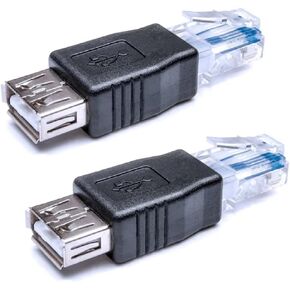 Hididi 2 Pack Ethernet to USB Adapter, RJ45 Ethernet Male to USB Female Converter, USB to RJ45 Connector for ADSL Modem, Router, Camera with Network Function
KWD 2.500
Hididi 2 Pack Ethernet to USB Adapter, RJ45 Ethernet Male to USB Female Converter, USB to RJ45 Connector for ADSL Modem, Router, Camera with Network Function
KWD 2.500

 الكويت