- التسوق ، اصبح سهلا.
- /
- احصل على التطبيق!
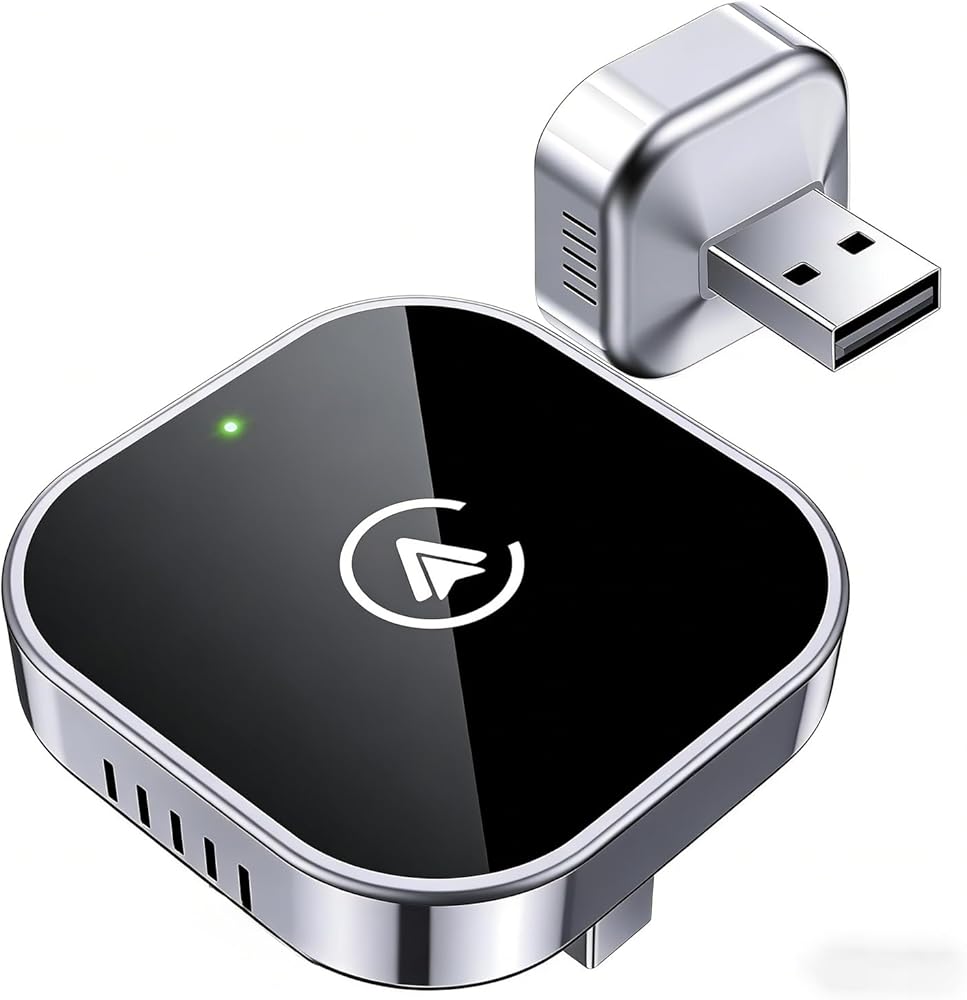
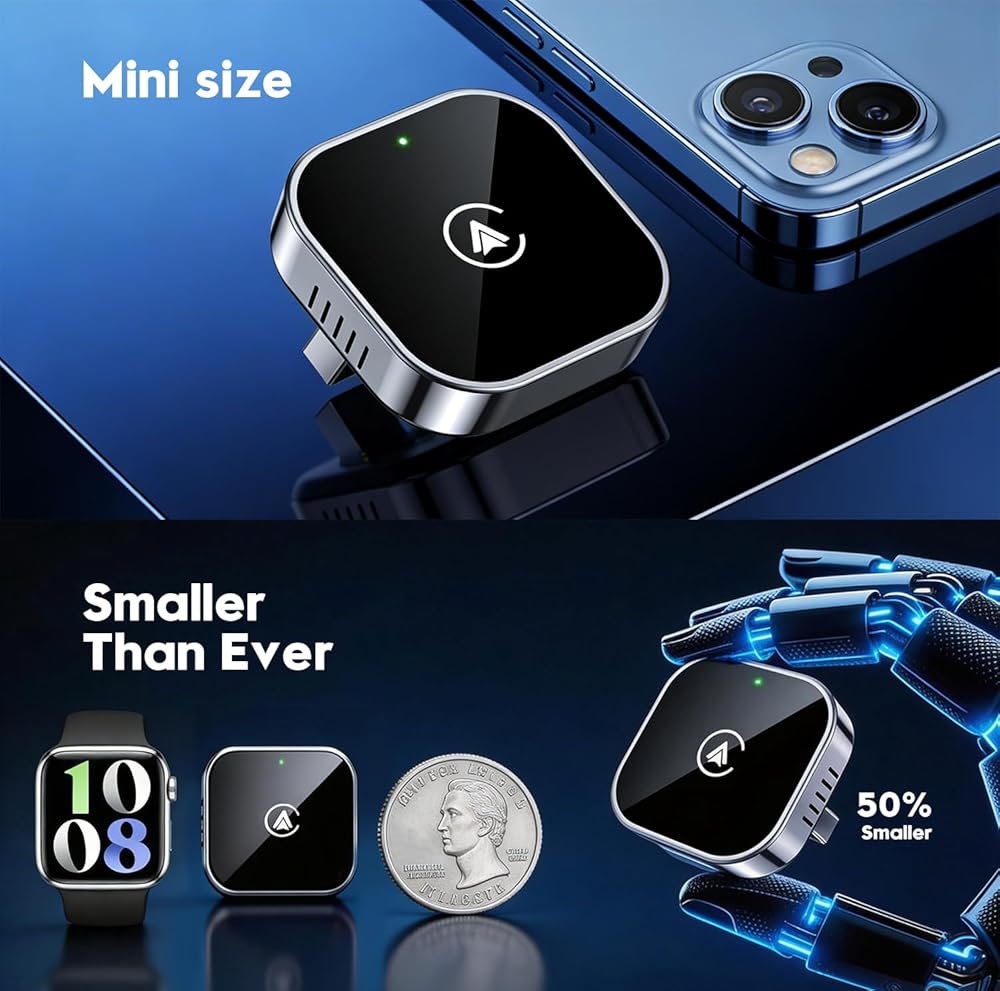
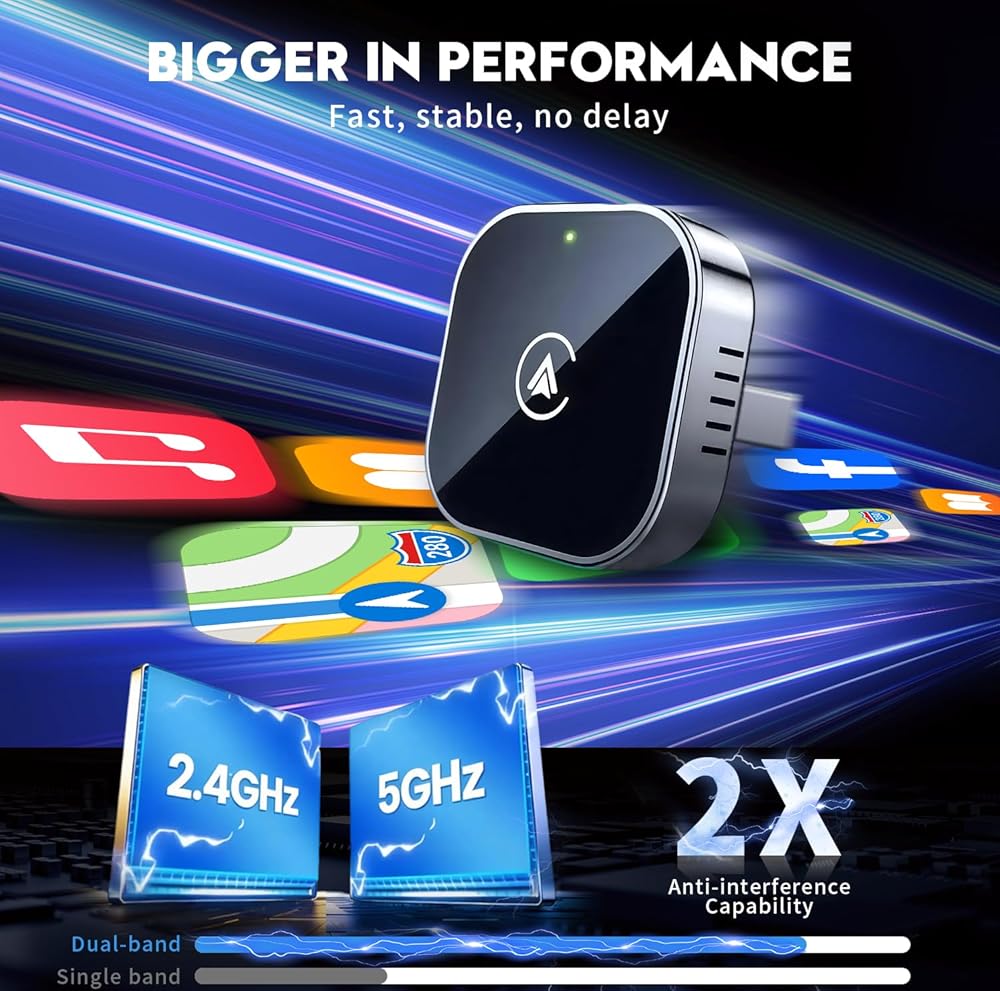
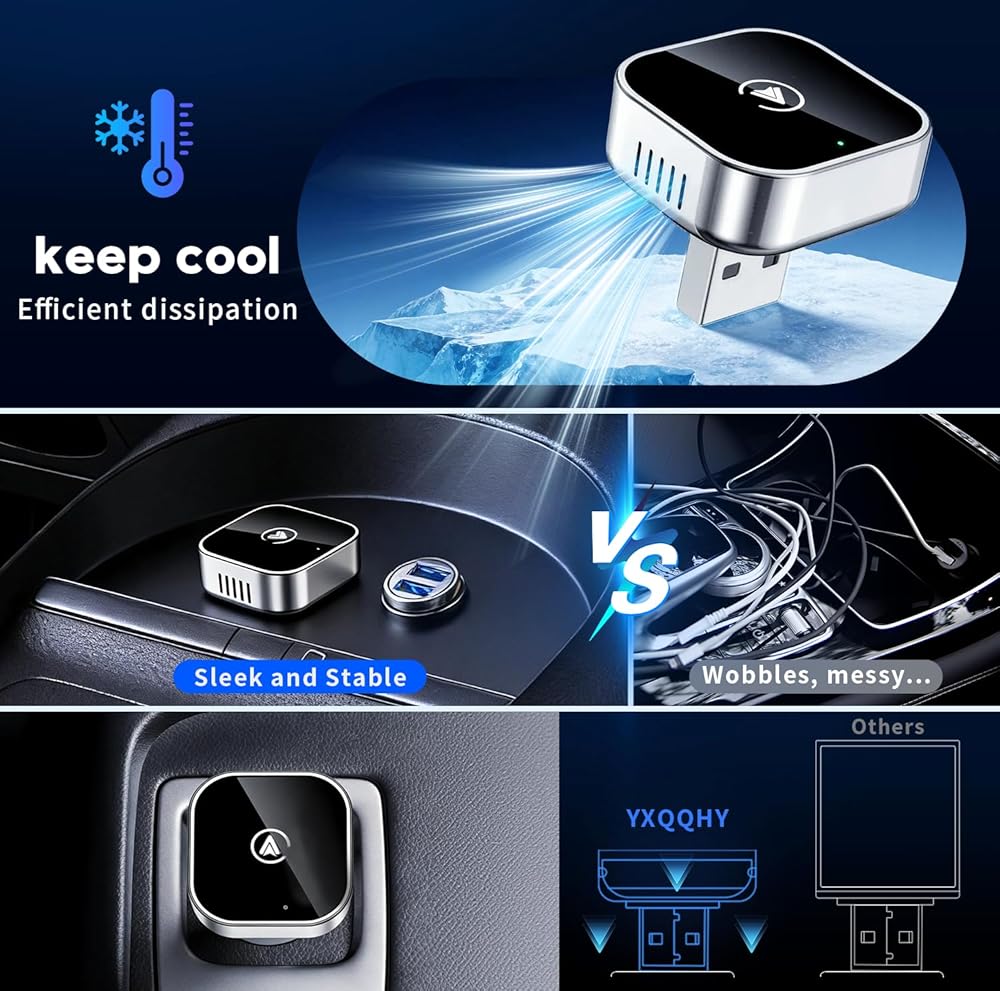
Experience a smarter drive with the 2 in 1 Wireless CarPlay and Android Auto Adapter — your ultimate solution for converting wired car systems into wireless convenience. This wireless carplay adapter and wireless android auto car adapter enables android carplay and android car play across over 1000 car models. Whether you're driving a car or truck, simply plug it in, pair once, and you're set. It retains full app access and original vehicle control—maps, calls, music, voice assistant—all work just like the factory system. Thanks to upgraded 2.4GHz + 5GHz chips, the adapter connects 30% faster than average. It reconnects automatically in just 3 seconds—perfect for busy mornings or family trips. Compared to bulky models, this wireless adapter is half the size, flush-fitting, and secure. No more messy cables, unstable dongles, or poor contacts during bumpy drives. Whether you're an iPhone or Android user—or both— 2 in 1 Wireless CarPlay Adapter and Wireless Android Auto Car Adapter brings convenience, compatibility, and performance together in one compact design. With built-in safety protections and eco-conscious packaging, it's an ideal pick for personal use or gifting. Note: If the adapter connects and then disconnects repeatedly, it's usually caused by your phone's Wi-Fi or Bluetooth being connected to other devices (such as your car's built-in Bluetooth, smartwatch, or earbuds). Please make sure your phone's Wi-Fi and Bluetooth are enabled but not paired with other devices while using the adapter for the most stable connection. Troubleshooting – Quick Guide 1. Check Your Phone Settings Make sure your phone's Bluetooth and Wi-Fi are turned on and not currently connected to other devices (such as your car, smartwatch, or earbuds). 2. Reset the Wireless Adapter Unplug the adapter → remove or ignore “SmartBox-xxxx” in your phone's Bluetooth list → restart your phone → plug the adapter back in and re-pair the connection. 3. Update the Firmware If the issue persists, please update the firmware (see Pages 4–6 of the user manual), then reset the adapter again and retry the connection. If recognition issues occur, please follow the reset and firmware update steps found in the user manual. These procedures resolve most reading/connection problems.
 سرير صغير من الكلب صغير الكلب وسرير القط ، دونات رقيقة مضادة للقلق جولة سرير لطيف قابلة للغسل ، فخم الحضن دافئ دافئ سرير جرو للحيوان
KWD 8.500
سرير صغير من الكلب صغير الكلب وسرير القط ، دونات رقيقة مضادة للقلق جولة سرير لطيف قابلة للغسل ، فخم الحضن دافئ دافئ سرير جرو للحيوان
KWD 8.500
 1/0 سلك المقياس (20 قدم لكل منهما - أحمر/أسود) CCA CLAD CCA - سلك السيارات الأساسي ، مكبر للصوت ، كابل بطارية ، كابل بطارية لمكبر الصوت ، الطاقة الشمسية ، السيارات ، RV Trailer & Marine
KWD 0
1/0 سلك المقياس (20 قدم لكل منهما - أحمر/أسود) CCA CLAD CCA - سلك السيارات الأساسي ، مكبر للصوت ، كابل بطارية ، كابل بطارية لمكبر الصوت ، الطاقة الشمسية ، السيارات ، RV Trailer & Marine
KWD 0
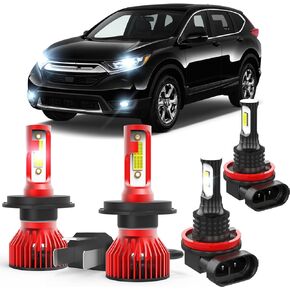 لـ Honda CRV CR-V 2007 2008 2009 2000 2011 2012 2013 2014 500 ٪ Brudrence 9003/H4 High & Low Beam+H11 LED LIGH
KWD 16
لـ Honda CRV CR-V 2007 2008 2009 2000 2011 2012 2013 2014 500 ٪ Brudrence 9003/H4 High & Low Beam+H11 LED LIGH
KWD 16
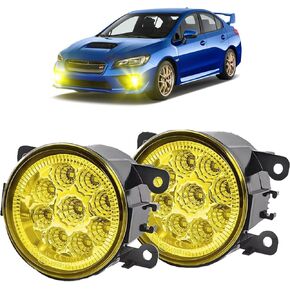 أضواء الضباب 3.5 بوصة OEM 19606300 متوافقة مع Subaru WRX 2015-2021 المصد الأمامي H11 مصابيح ضوء الضباب السائق اليسرى وتجميعات الركاب ضباب الضوء ، 3500K شعاع أصفر ذهبي ، ساطع للغاية. 2 عبوة.
KWD 16.500
أضواء الضباب 3.5 بوصة OEM 19606300 متوافقة مع Subaru WRX 2015-2021 المصد الأمامي H11 مصابيح ضوء الضباب السائق اليسرى وتجميعات الركاب ضباب الضوء ، 3500K شعاع أصفر ذهبي ، ساطع للغاية. 2 عبوة.
KWD 16.500