- التسوق ، اصبح سهلا.
- /
- احصل على التطبيق!
Specification:
Item Type: MMDVM Duplex Hotspot Board
Product Material: Aluminum Alloy
Color: Silver Color
Support Digital Format: C4FM, DMR, DSTAR P25 and Other Digital Formats
Operating Frequency Range: 144‑148/219‑225, (Main Band) 420‑475/842‑950
Interface: Micro USB x 1, HD Multimedia Interface x 1, 3.5mm Sound Jack x 1, USB x 4, RJ45 x 1
Memory Card Slot: Built in 8G Memory Card
Antenna: Two External Antennas
How to Use:
WiFi settings when MMDVM first starts up:
I. Connect to an automatic AP hotspot:
1. The hotspot is powered up.
2. Wait for for Pi‑Star to start. It usually takes about a minute (longer if using for Pi 0W ). If your hotspot has an on‑screen display, you can watch for Pi‑Star start up until you are prompted to log in. 3.
3. Wait 2 minutes for the Auto AP feature to activate. 4.
4. View the hotspot named "Pi‑Star‑Setup" on your computer or cell phone and connect. WiFi Hotspot: Pi‑Star‑Setup; Password: 12345678
II. Login for Pi‑Star page. 1:
1. Connect successfully.
2. When you start for Pi‑Star for the first time, you will see a page showing "No Mode Defined...". Click Configure. Click "Configure" or wait 10 seconds to be redirected to the configuration page.
3. Enter the configuration page, and enter your account password to log in to the for Pi‑Star page. Default user name: pi‑star; Password: 12345678
III. Add individual WiFi connection:
1. After entering the configuration page, scroll to "Wireless Configuration", click Configure WiFi.
2. Select your country or area code, click Scan for Networks (10 seconds) to start searching for WiFi, and wait 10 seconds.
3. If the WiFi you want to add is not in the search results, you can add it manually.
4. After the hotspot reboots, it will connect to the set individual WiFi. Visit for Pi‑Star in your browser for additional configuration.
Package List:
1 x Hotspot Board
2 x Antenna
 وحدة تحكم ألعاب ABS لـ Joy Con، وحدة تحكم بديلة لألعاب الرماية، وحدة تحكم ألعاب بيضاء، مقبض مريح لملحقات ألعاب التبديل
KWD 6.500
وحدة تحكم ألعاب ABS لـ Joy Con، وحدة تحكم بديلة لألعاب الرماية، وحدة تحكم ألعاب بيضاء، مقبض مريح لملحقات ألعاب التبديل
KWD 6.500
 وحدات تحكم Xbox، أجزاء بديلة لأزرار Thumbsticks Bullet ABXY لوحدة تحكم Microsoft Xbox One Xbox One S X (أزرق)
KWD 5.500
وحدات تحكم Xbox، أجزاء بديلة لأزرار Thumbsticks Bullet ABXY لوحدة تحكم Microsoft Xbox One Xbox One S X (أزرق)
KWD 5.500
 Tangxi 3.5 "SSD فلوني درايف محاكي ، SFR1M44-U100 1.44MB FAT32 USB SSD لمحرك الأقراص المرنة + براغي CD ، التوصيل والتشغيل، سهلة التركيب، معدات التحكم الصناعية
KWD 14
Tangxi 3.5 "SSD فلوني درايف محاكي ، SFR1M44-U100 1.44MB FAT32 USB SSD لمحرك الأقراص المرنة + براغي CD ، التوصيل والتشغيل، سهلة التركيب، معدات التحكم الصناعية
KWD 14
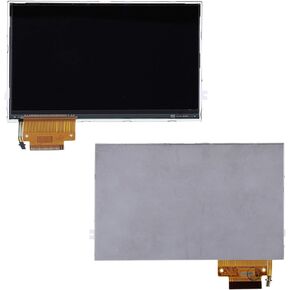 استبدال شاشة LCD بإضاءة خلفية Tangxi لوحدة تحكم PSP 2000 2001 2002 2003 2004
KWD 13
استبدال شاشة LCD بإضاءة خلفية Tangxi لوحدة تحكم PSP 2000 2001 2002 2003 2004
KWD 13